The manifest will not install
Check that you copied the complete configured installation URL and that the addon service is online. A configuration page, expired private link or login page is not a usable manifest.

Android TV · Google TV · Addon guide
Looking for an Android TV player that works with addon manifest URLs? ARVIO lets you install compatible Stremio addons alongside your own media servers and other sources. Here is how to configure them, understand what each addon provides and solve common setup problems.
Updated 5 October 2026 · By the ARVIO project
A manifest is an addon's description of its name, capabilities and available resources. It is not a movie file, a subscription or a copy of your Stremio account. What appears in ARVIO depends on the resources the addon provides.
| Addon resource | What it does in ARVIO |
|---|---|
| Catalogs and metadata | Provide browseable titles, artwork and details. Compatible addon catalogs can be imported; these entries do not necessarily include a stream. |
| Streams | Return source choices for a title or episode. Playback requires a source that resolves to accessible HTTP or HTTPS media and a device that supports the format. |
| Subtitles | Provide available subtitle tracks for a title or selected source. Results depend on the addon, matching metadata and language availability. |
| Raw torrent or magnet sources | Not supported for direct P2P playback. An infoHash without a playable URL is not enough. |
| Other apps' plugins or accounts | A Kodi plugin ZIP, browser extension or Stremio account login is not a compatible addon manifest. ARVIO does not import an entire Stremio account. |
Compatibility is not universal. An addon may depend on its own configuration, availability, title IDs or playback format. If you are evaluating ARVIO as a Stremio alternative on Android TV, test the addons you actually use rather than assuming every feature transfers.
Use Google Play or the official APK release. The Android app is free. See the Android TV installation guide for the first-run setup.
Choose an addon from a provider you trust and are authorized to use. Complete any provider configuration before copying its installation URL, often ending in /manifest.json. Copy the manifest, not a configuration webpage or a single video URL. Configured URLs can contain credentials: do not post them publicly.
Paste the manifest URL and review the addon information before confirming installation. If the same addon has another configuration installed, use Replace installed to replace it or Keep both if you intentionally need separate configurations.
If it says Setup required, finish its configuration. Open a title from a catalog or your library and request sources. A catalog-only addon needs a separate playable source. For provider-based streams, follow the debrid and Usenet setup guide.
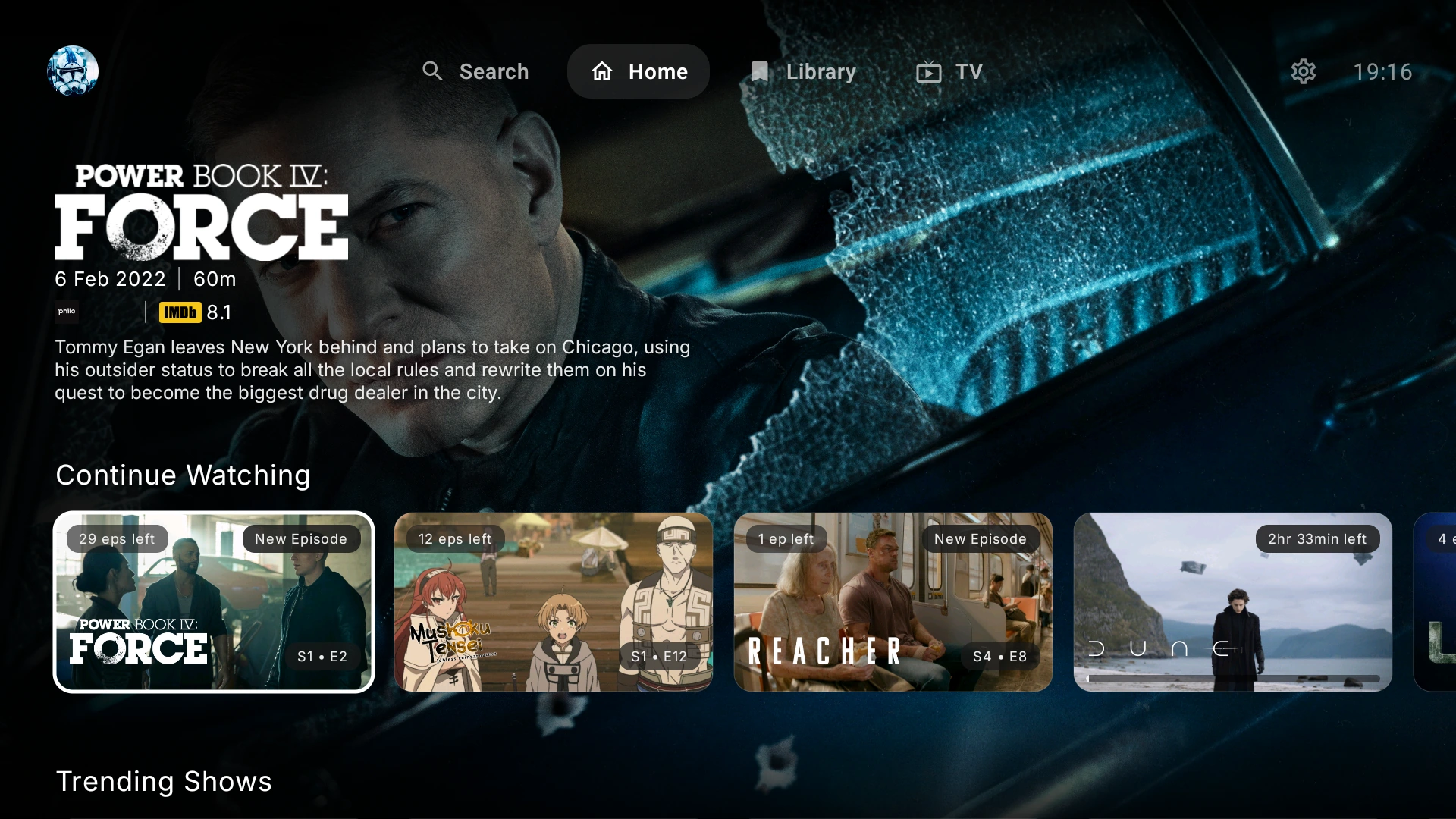
Compatible addon catalogs are imported after installation. Use the collections and catalogs guide to organize Home rows. Start with one working addon so it is clear which integration supplies each result.
The TV configuration flow can show a QR code for opening the addon's settings on your phone. After changing its settings, tap Install in ARVIO on the phone. On the TV, choose Settings → Addons → Refresh Addons.
The cross-device step requires ARVIO Cloud: use a valid session, the same account and the intended profile. Scanning the QR code or saving settings on an addon's website alone does not send the updated configuration to the TV.
Prefer to keep installation local? Copy the configured manifest and paste it directly into Add Addon on the TV. Cloud is not required for this direct installation method.
Check that you copied the complete configured installation URL and that the addon service is online. A configuration page, expired private link or login page is not a usable manifest.
Check for an enabled stream-providing addon, complete its setup and confirm that your provider has the requested title. Catalog and subtitle addons alone do not supply videos.
Confirm the phone installation completed and the Cloud account and profile match before using Refresh Addons. Without cross-device sync, install the newly configured manifest directly on the TV.
Check provider access and service errors, then try another authorized source with a compatible format. Raw magnets, unsupported codecs and inaccessible links are different issues from manifest installation.
For support, include your device, ARVIO version, addon name and the visible error in ARVIO's Discord. Never include private manifest URLs or access tokens.
ARVIO supports installing compatible Stremio addon manifests by URL. Catalog, metadata, stream and subtitle behavior depends on the resources each addon exposes. Compatibility is not universal; a playable stream must resolve to media the device can access and decode.
No. Installing a manifest URL is not a full Stremio account import. Add your chosen configured manifests in ARVIO; do not assume your Stremio library, watched history or account settings will transfer.
Catalog addons provide browsing entries, not necessarily playable video. Install and enable a compatible stream source, complete any required configuration and check that the provider offers the title to your account.
No. You can paste a configured manifest directly into Add Addon on the TV. The phone-to-TV restoration flow requires a valid ARVIO Cloud session with the same account and intended profile; changing settings on a phone alone does not update the TV.
No. Raw P2P torrent, magnet and infoHash-only playback is not supported. Use an authorized integration that returns a source resolving to accessible HTTP or HTTPS media.
No. ARVIO is an independent media app with support for compatible addon manifests. It is not an official Stremio client, and this guide does not imply an affiliation or endorsement.