Android TV · Google TV · Free app

ARVIO on Android TV: install, add sources, start watching.

Install the official app, then connect a library, playlist or compatible addon you already use. ARVIO organizes your sources; installing the app alone does not include movies or channels.

Updated 4 October 2026 · By the ARVIO project

Install on Android TV or Google TV

  1. Use an official download

    Open Google Play on your device and find ARVIO, or follow the official store link above. If you use the GitHub release, download its signed .apk asset. An AAB is a store upload bundle; the source-code ZIP is not an installable app.

  2. Complete installation on your device

    Google Play handles installation and updates. For an APK, transfer it to your TV with a method you trust and open it with your installer. If Android asks, allow installation from that specific installer only; you can turn that permission off again afterwards. Keep using official releases when updating.

  3. Choose a profile

    Open ARVIO and choose or create your profile. Select your language and appearance in Settings. Check the intended profile before adding personal accounts or changing watched history.

Using a Fire TV Stick? Check the Fire TV compatibility and installation guide first: the operating system determines whether an Android APK can be installed.

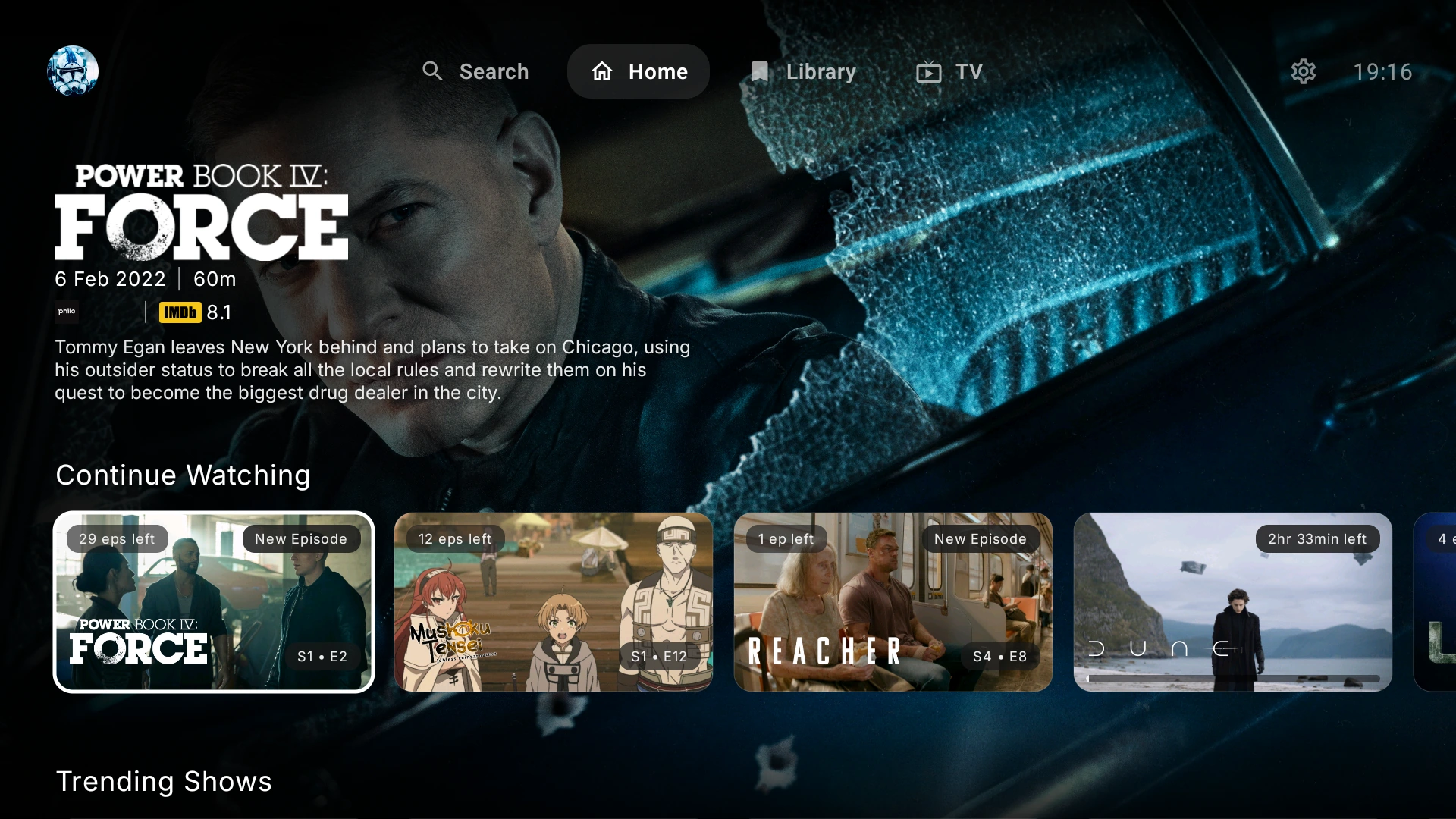
ARVIO Android TV home screen with library rows and remote-friendly navigation
ARVIO TV interface. The pictured libraries are examples; content is not included.

Start with one working source

Connect what you want to watch

Your media server

Open Settings → Home Server → Add server. Use a Jellyfin, Plex or Emby server you can access. Android also offers Connect with code for Plex and Jellyfin. After connecting, open Library → Homeserver and choose your server and library. Read the home-server guide.

Your live TV playlist

Open Settings → TV (IPTV) and enter your own provider or playlist details. Channel availability and program-guide information come from that provider. Set up live TV and EPG.

A compatible addon

Use the addon's manifest URL in Settings. Catalogs supply titles and artwork; only an addon that provides accessible streams can supply a playable source. Follow the addon steps below.

Watchlists and tracking

Connect Trakt or Simkl for their supported lists and watch tracking. A tracker is not a media provider and does not unlock the videos in a watchlist. Connect your tracker.

Test a familiar title from your own library before adding more integrations. Open its sources and choose a version that your device supports.

ARVIO addon setup

How to add an addon in ARVIO

  1. Get the configured manifest URL

    Use a Stremio-compatible addon from a provider you trust and are authorized to use. Finish any provider configuration first, then copy its manifest URL, often ending in /manifest.json. Treat a URL containing your credentials as private.

  2. Open Settings → Addons → Add Addon

    Paste the URL and install it. If ARVIO asks for confirmation, check the addon name and requested configuration before continuing. For an existing addon with a different configuration, choose Replace installed or Keep both intentionally.

  3. Check configuration and playback

    If an addon says Setup required, complete its configuration. On TV, the configuration flow can show a QR code for your phone. Change the settings there and tap Install in ARVIO on the phone, then choose Refresh Addons on the TV. Cross-device restoration needs a valid ARVIO Cloud session; use the same account and intended profile. Without cloud sync, paste the configured manifest URL directly into Add Addon on the TV instead. Test a title your provider makes available.

Installing a manifest is not the same as importing an entire Stremio account. Catalogs exposed by a successfully installed addon are imported by ARVIO. For custom Home rows and collections, use the collections and catalogs guide.

Common questions

Setup and troubleshooting

Do I need Premium for the Android APK?

No. The Android and TV app is free and open source. Premium is the optional hosted browser service. You still need your own media sources and any subscriptions those providers require.

Why can I see a poster but no playable source?

A catalog supplies titles and artwork, not necessarily video. Connect a home server or compatible stream source, check its configuration and confirm your account can access the title. Trakt and Simkl watchlists alone do not supply videos.

Why is an addon installed but not working?

Check whether the addon needs configuration, whether its manifest URL is complete and whether its provider is available. After configuring on a phone, install the updated manifest into ARVIO there, then use Refresh Addons on the TV with the same Cloud account and intended profile. Without cloud sync, paste the configured manifest directly on the TV. Not every catalog offers streams.

What if the APK will not install?

Confirm that the device runs a compatible Android-based operating system and that you downloaded an APK from the official release. Check free storage and the installer permission. A different signing certificate or an attempted downgrade can block an update; do not uninstall your working app without considering its local data.

Can I use the same APK on Windows, iPhone or iPad?

No. The APK is for Android-based devices. Use ARVIO Web in a supported browser on Windows, Mac, iPhone or iPad, with optional managed hosting or your own self-hosted installation.
Still stuck? Ask in the ARVIO Discord with your device, app or browser version and the error message. Do not share passwords, access tokens or private provider URLs.