
Your media.Beautifullyconnected.
Your libraries, live TV and discoveries.
One place that feels like yours.
Premium brings ARVIO to your browser. We host it. You support its future.
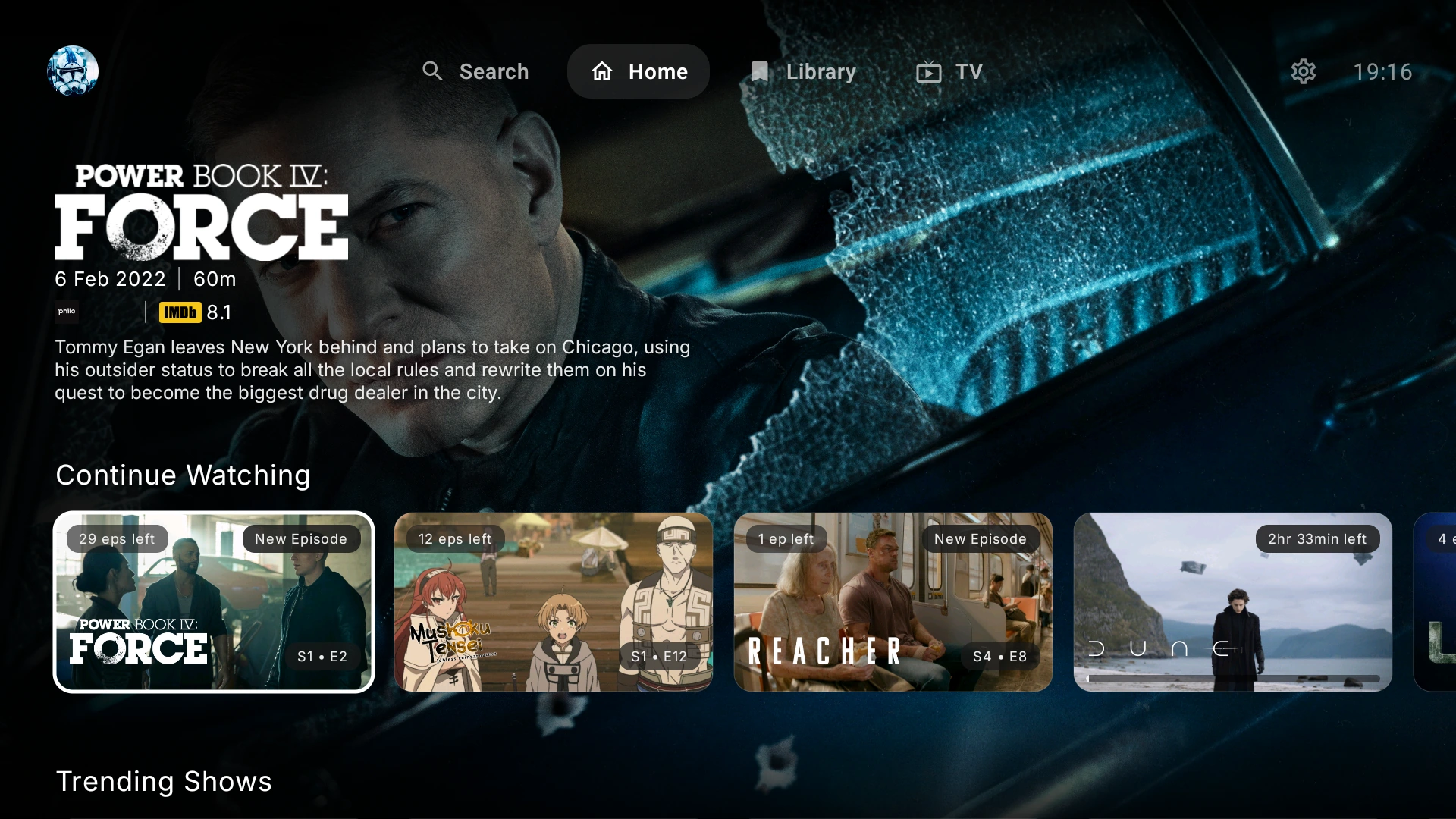
To wherever.TV · Phone · Tablet · Web
One app.
So many possibilities.
ARVIO PREMIUM
More screens.
More support for ARVIO.
Your ARVIO, hosted for you.
Use ARVIO Web on iPhone, iPad and desktop without running a server. Your membership helps fund hosting and continued development.
- No server to set up or maintain
- Your profiles, libraries and watch progress
- A monthly coffee that supports development
The APK is free. Premium is your choice.
Prefer your own server? Self-host for free.
BRING THE SERVICES YOU ALREADY USE
01 / THE EXPERIENCE
Less searching.
More finding your next thing.
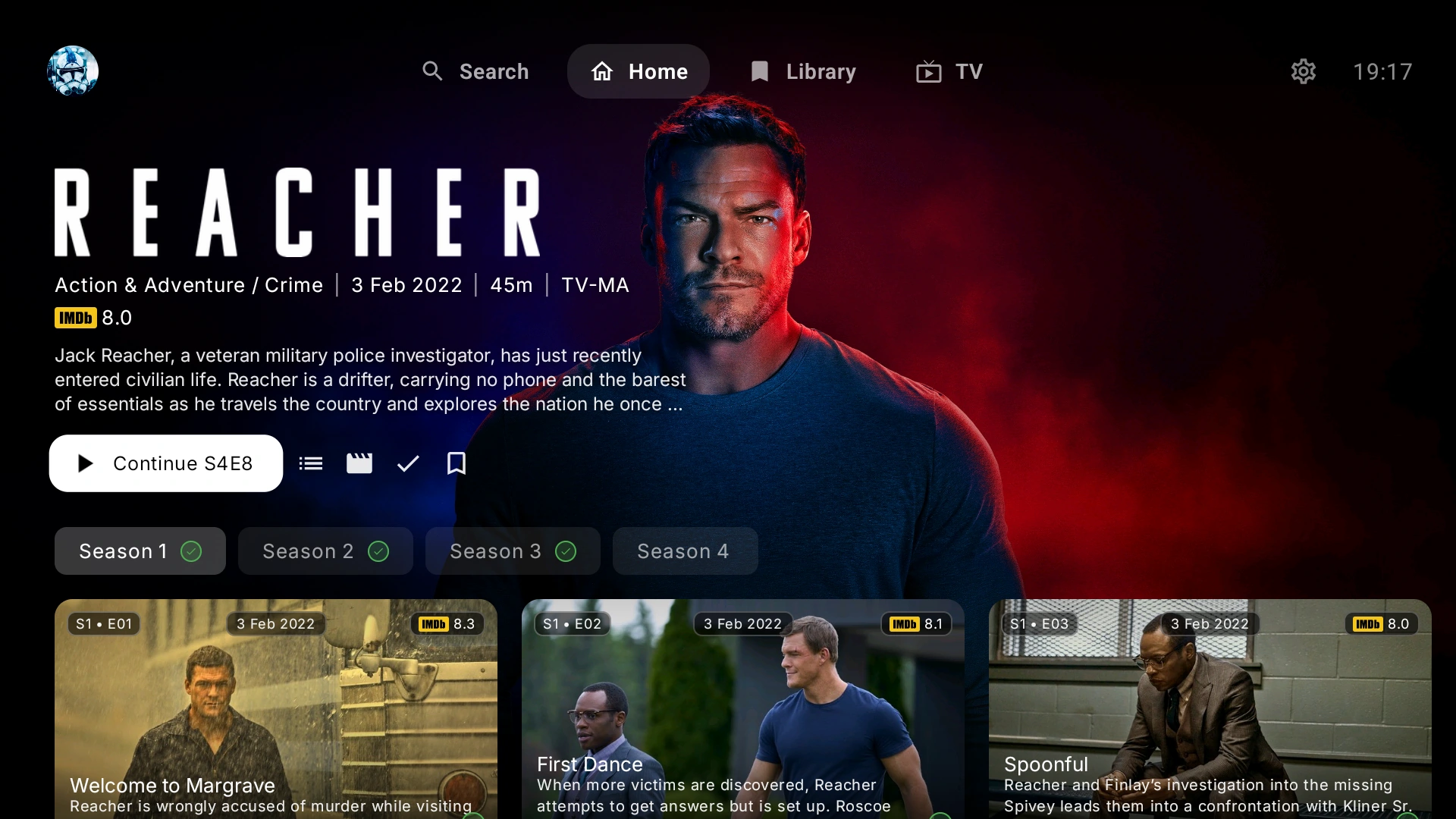
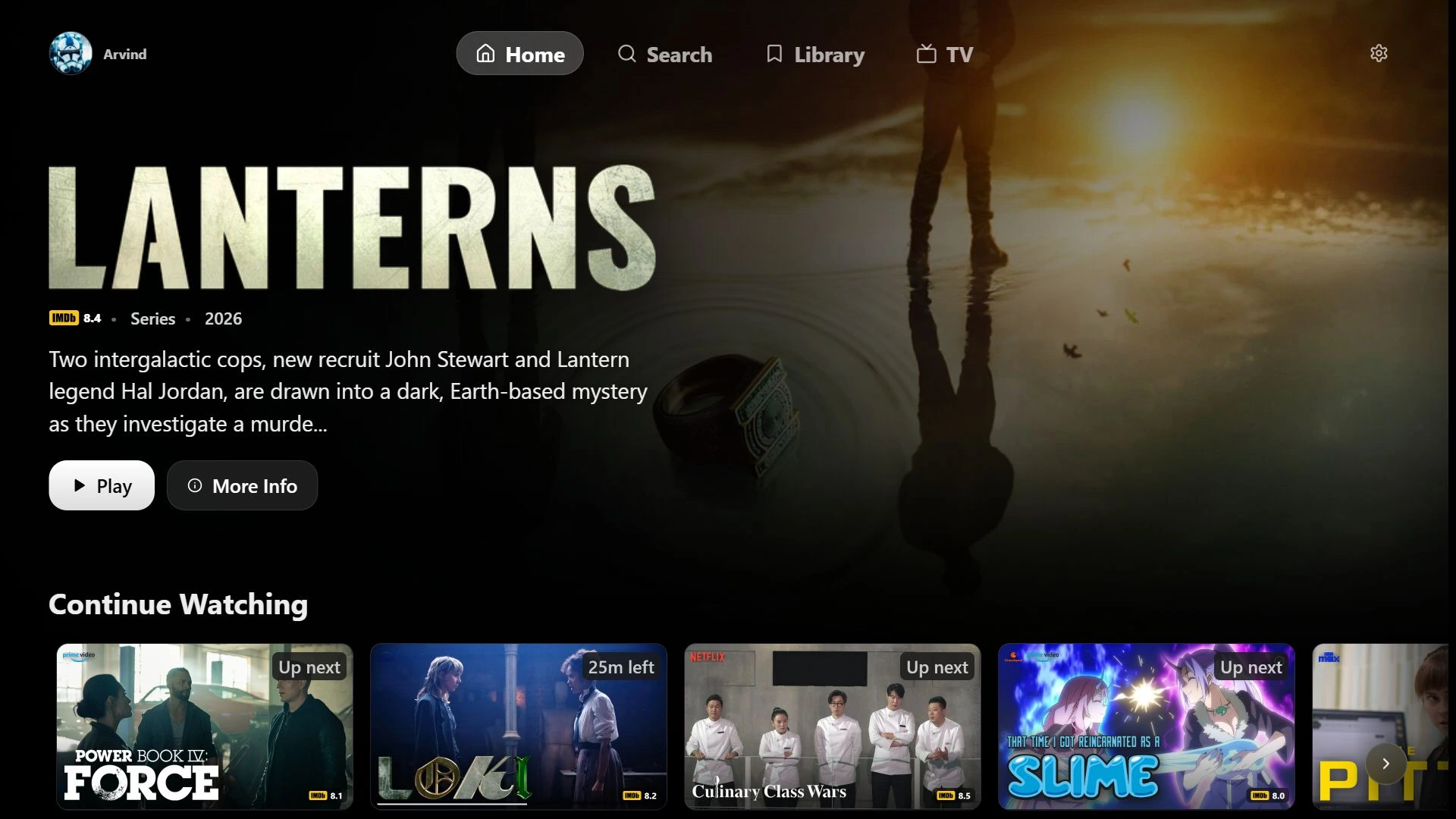
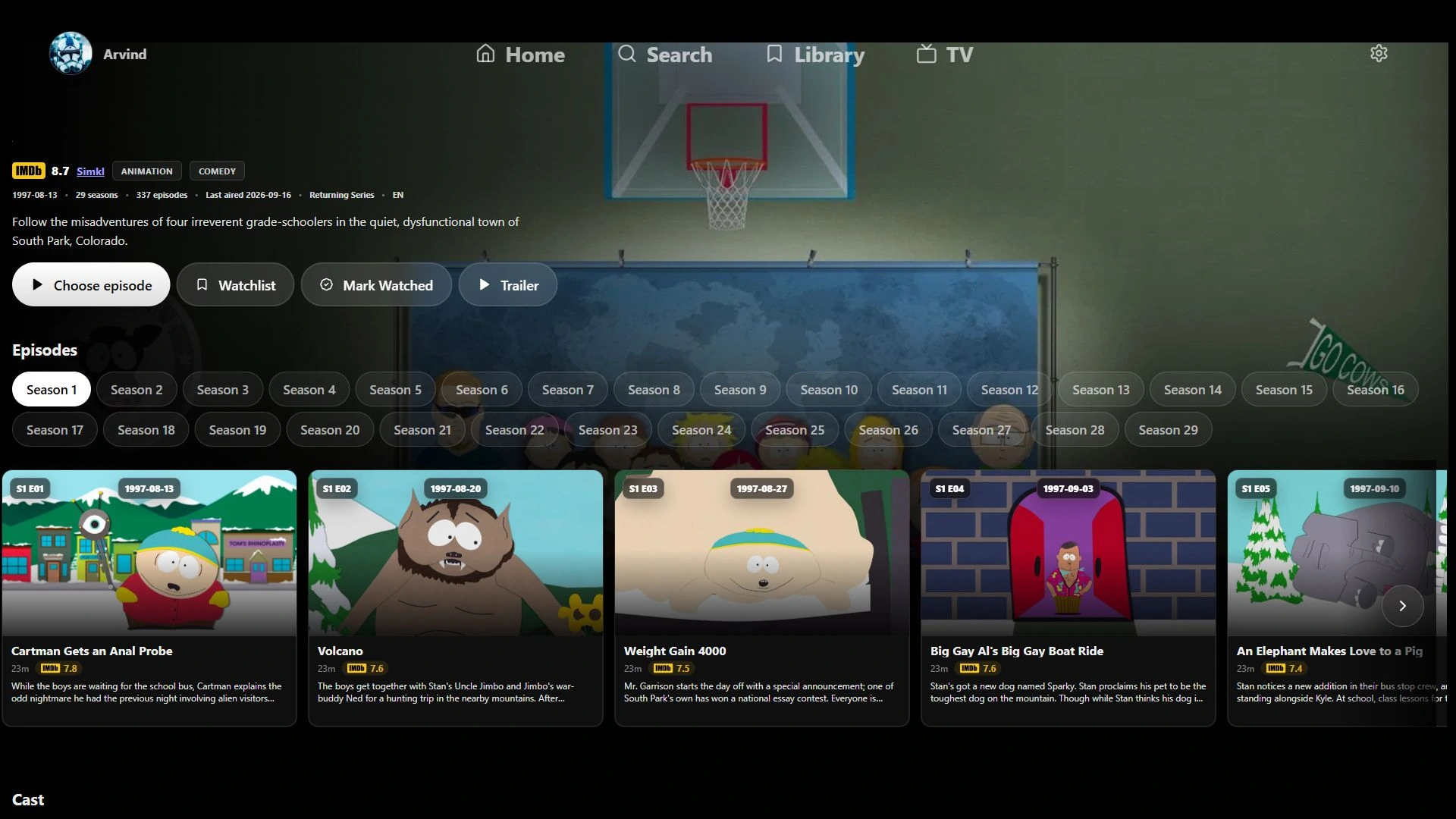
A home that brings everything together.
Designed around your remote, your sources
and the way you watch.
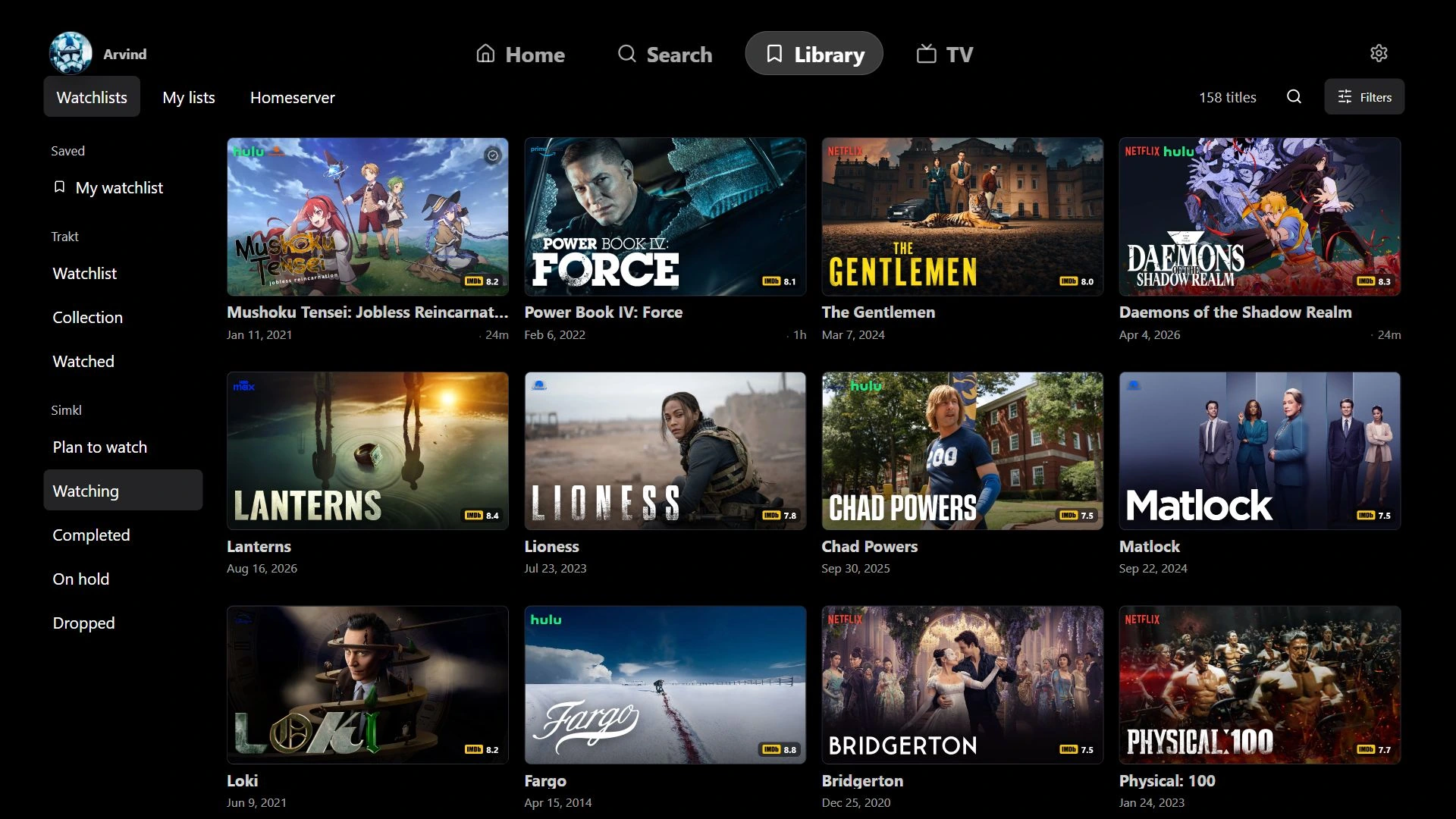
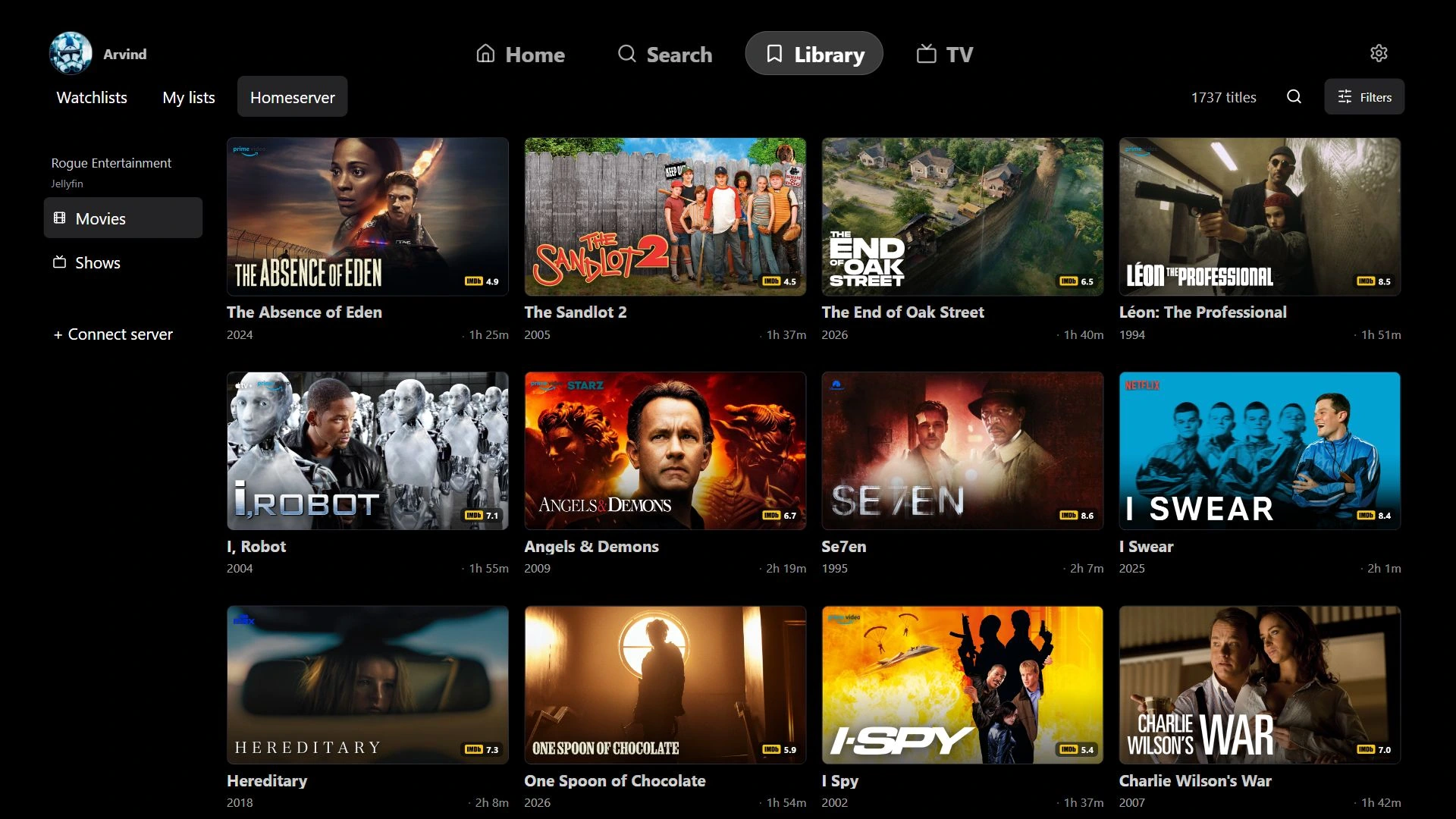
Everything you saved.
Right where it belongs.
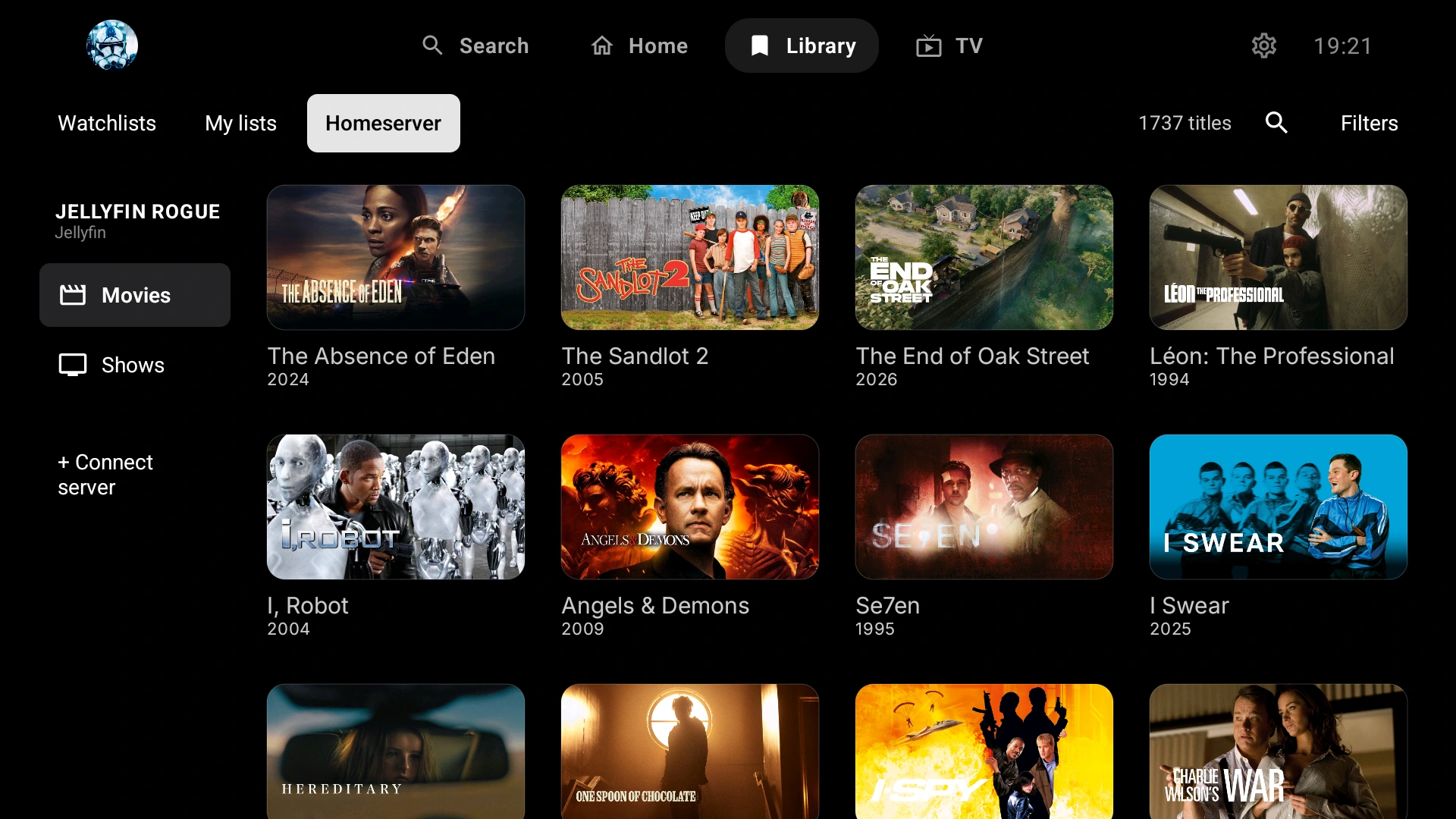
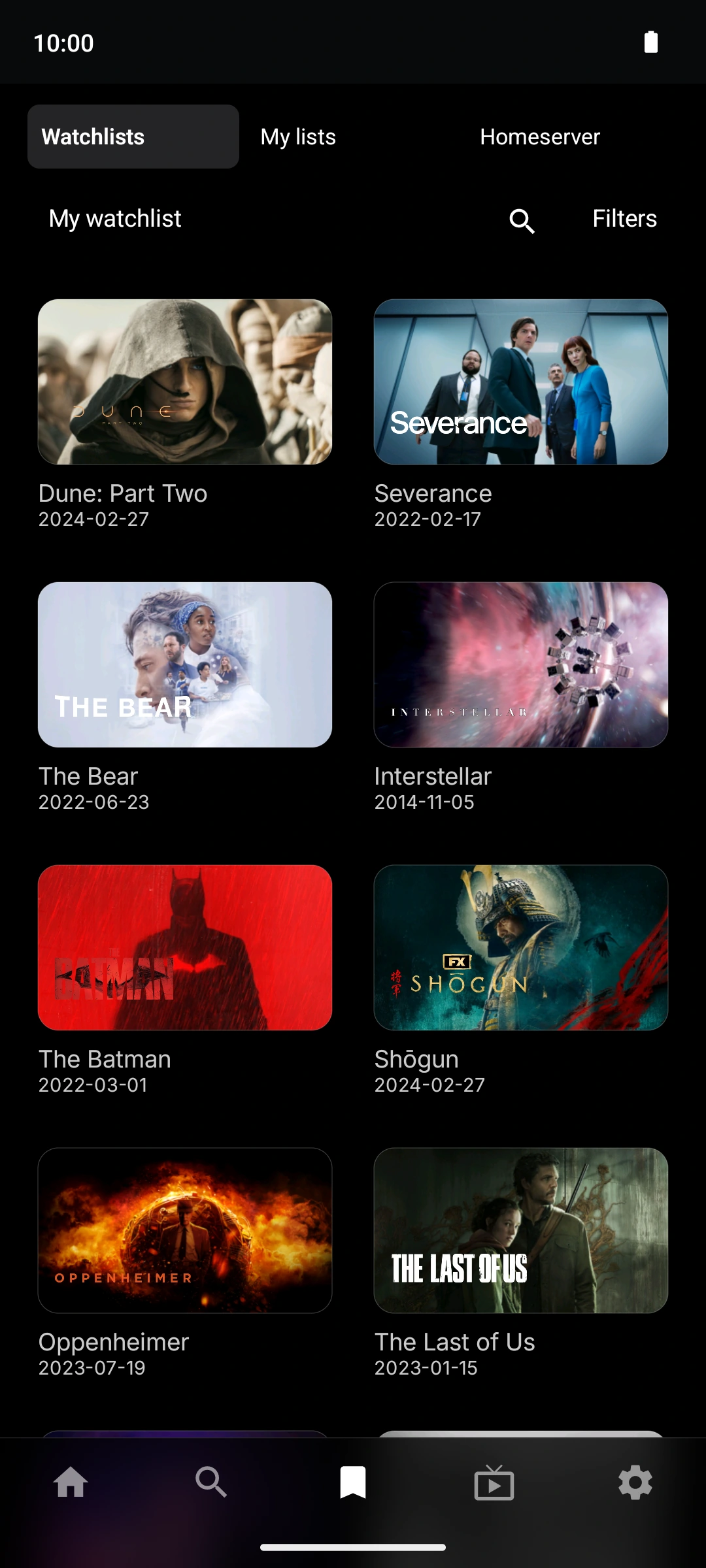
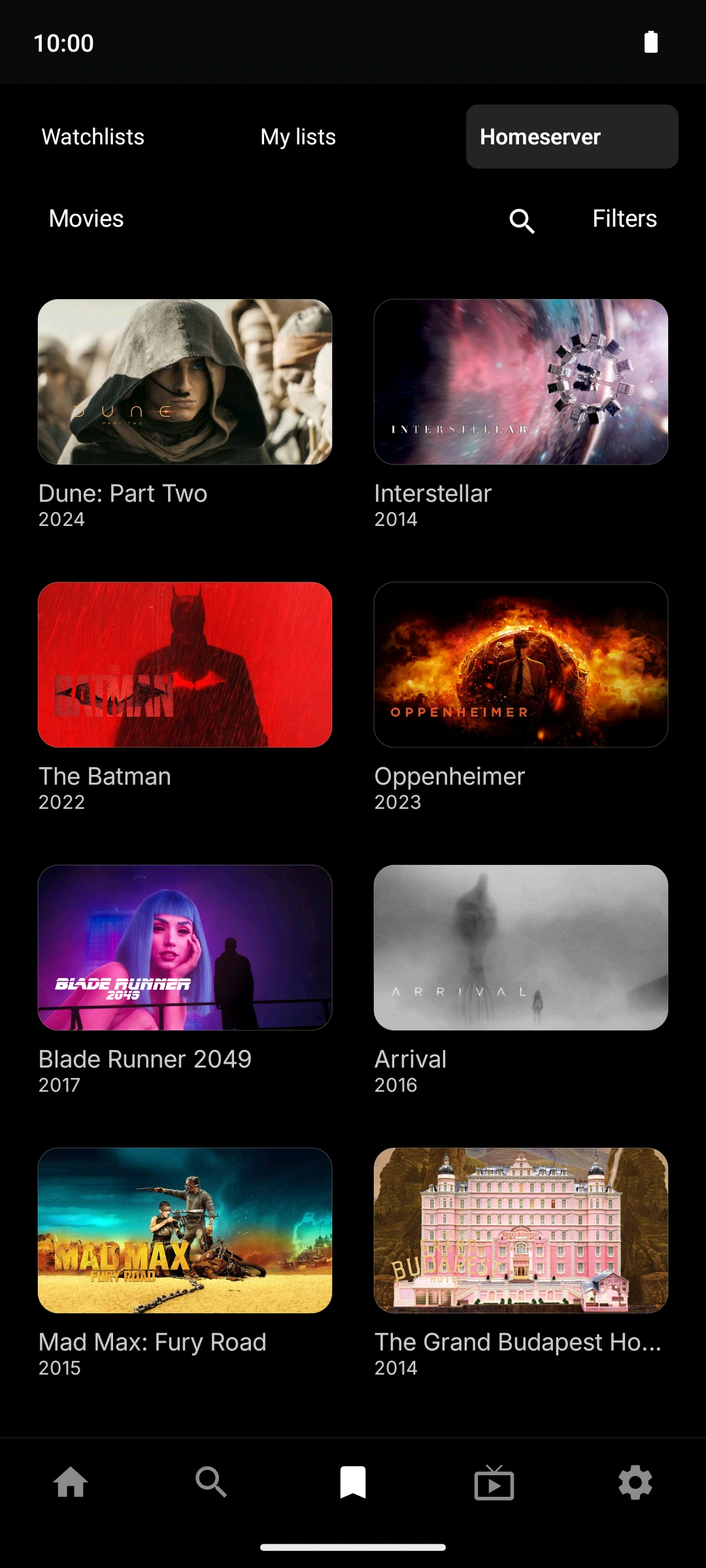
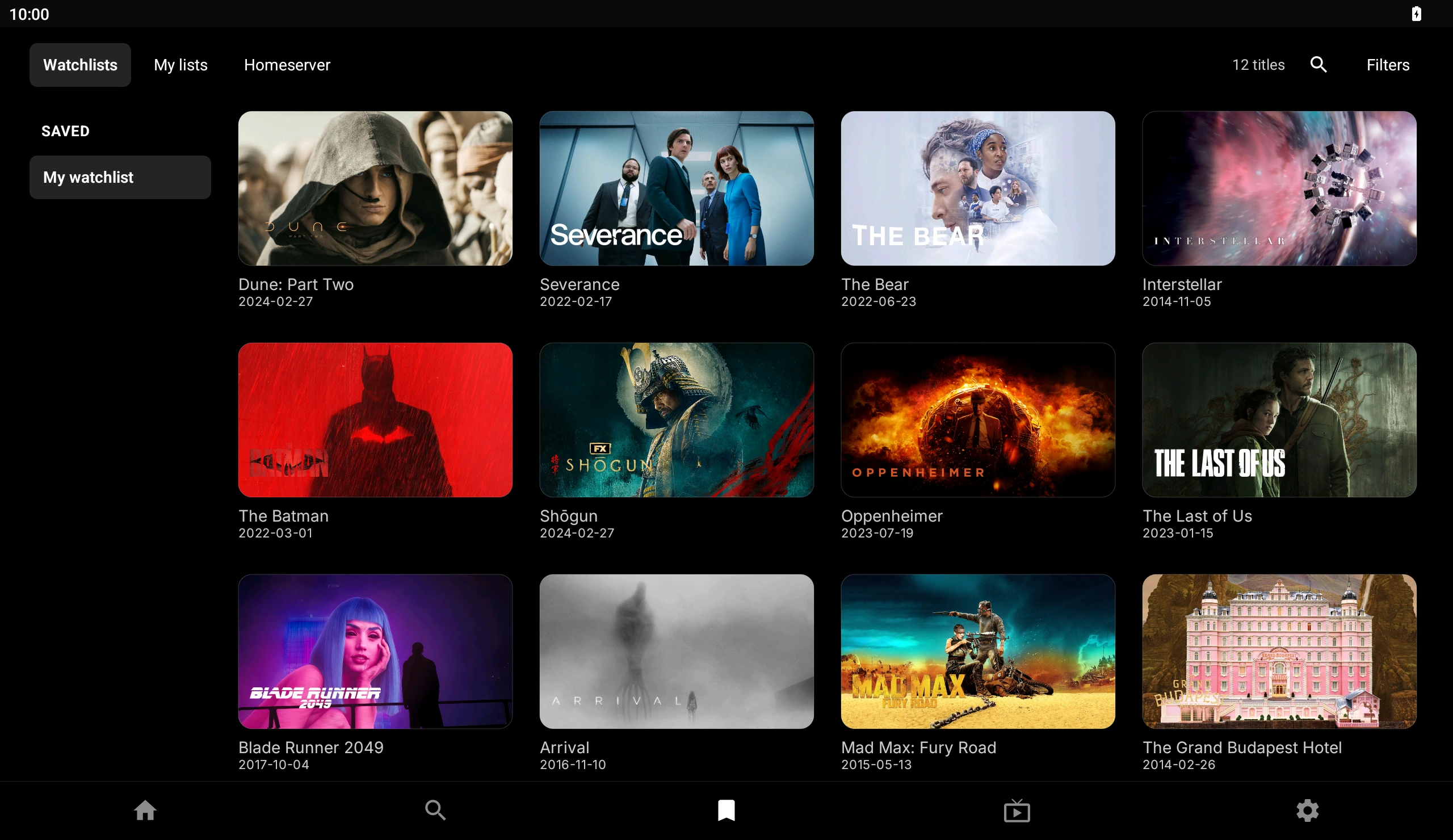
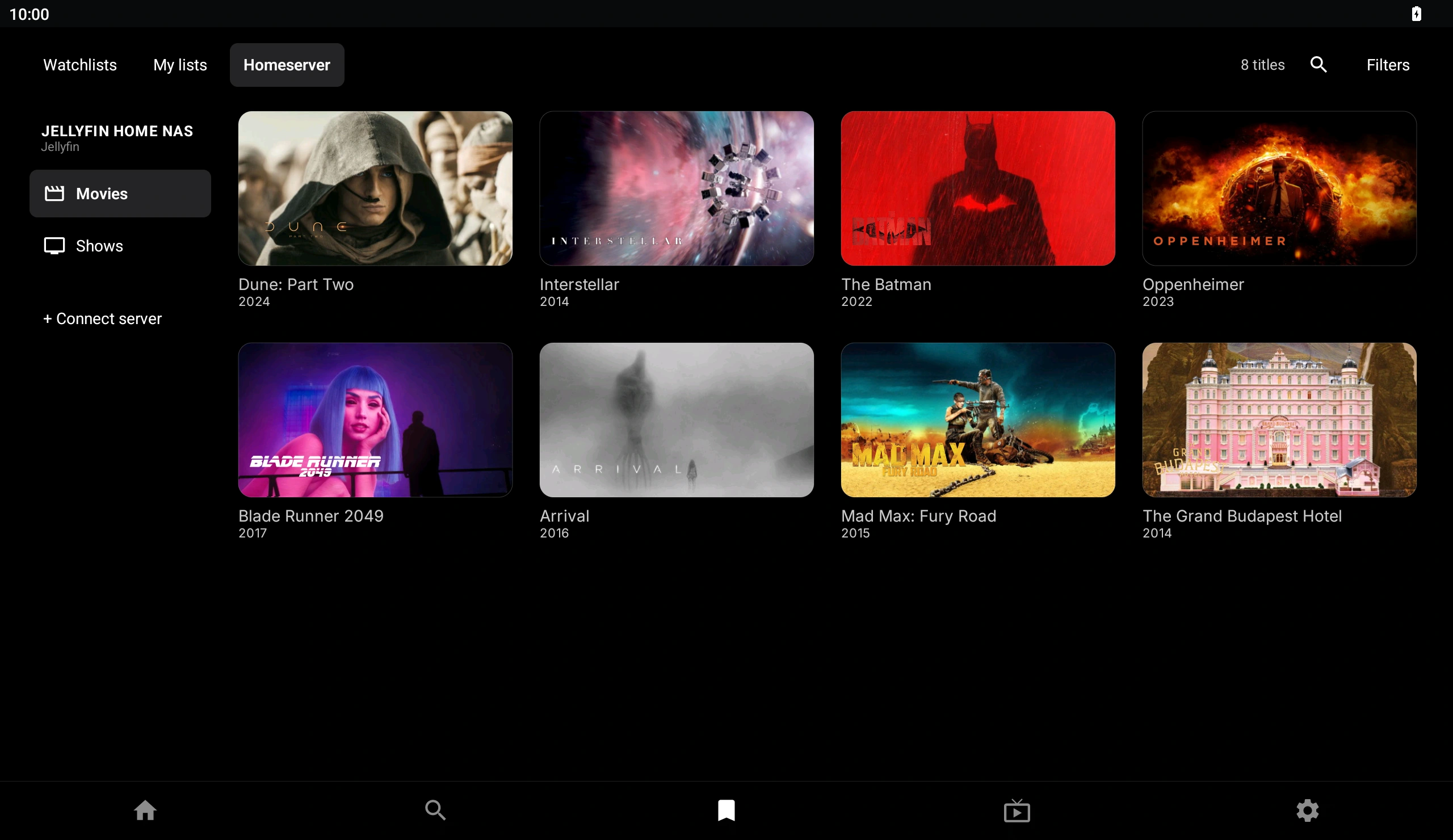
Watchlists, personal lists and home servers. Browse your collections in one place, with layouts that feel at home on TV.
See all screenshots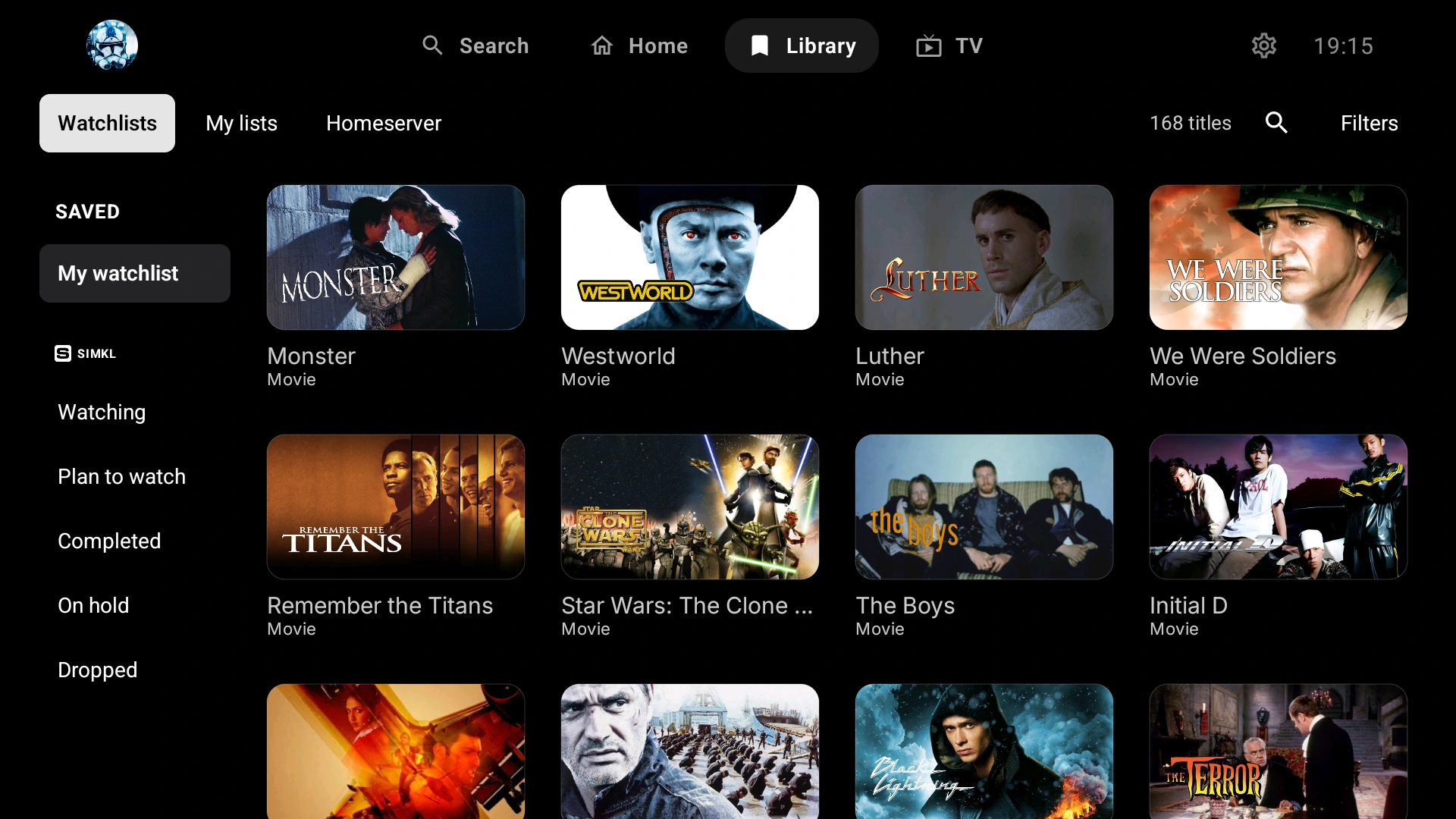
02 / EVERY SCREEN
Big screen energy.
Wherever you are.
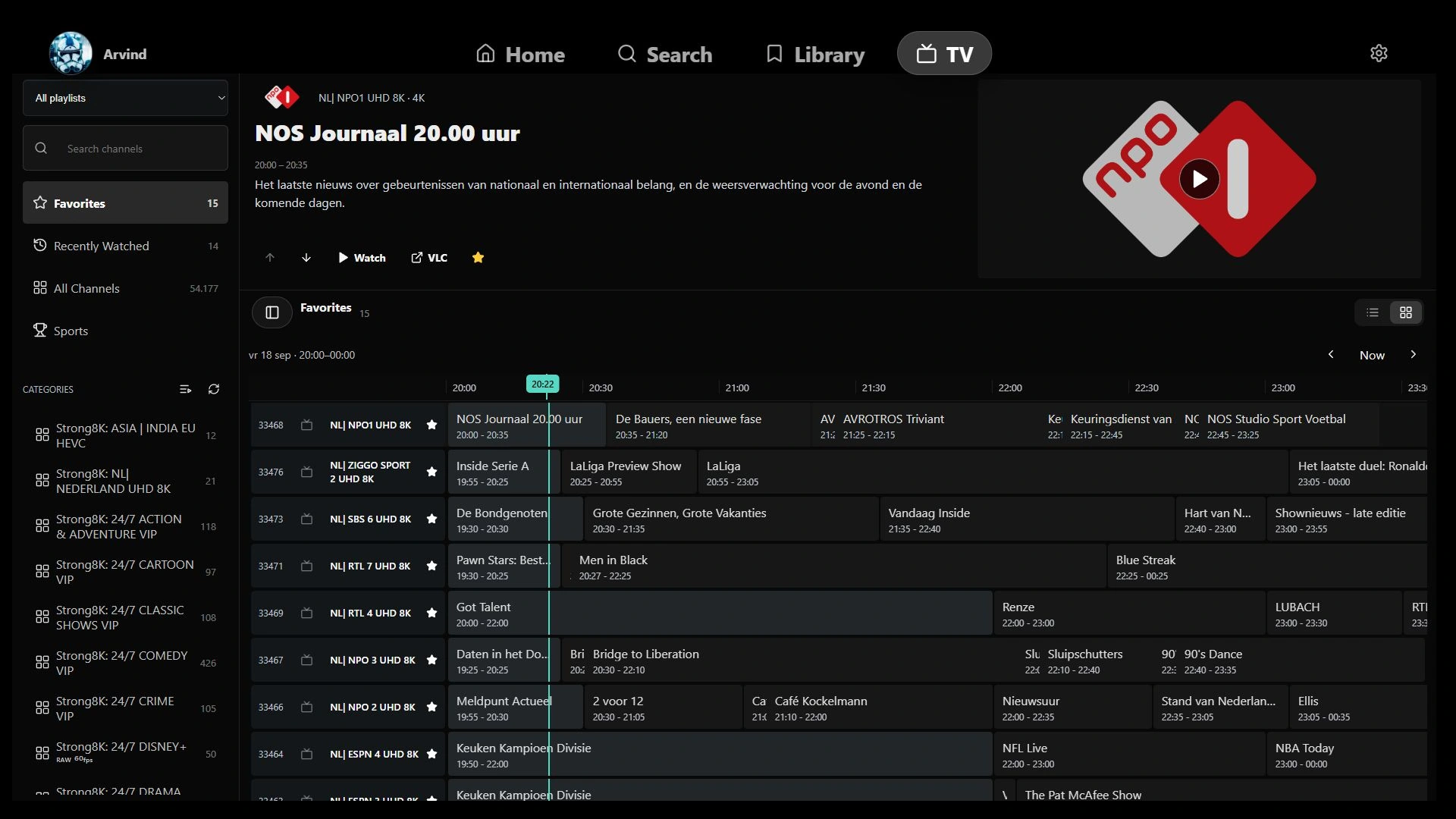
Made for your TV.
Refined for your phone and tablet.
Available in your browser, too.
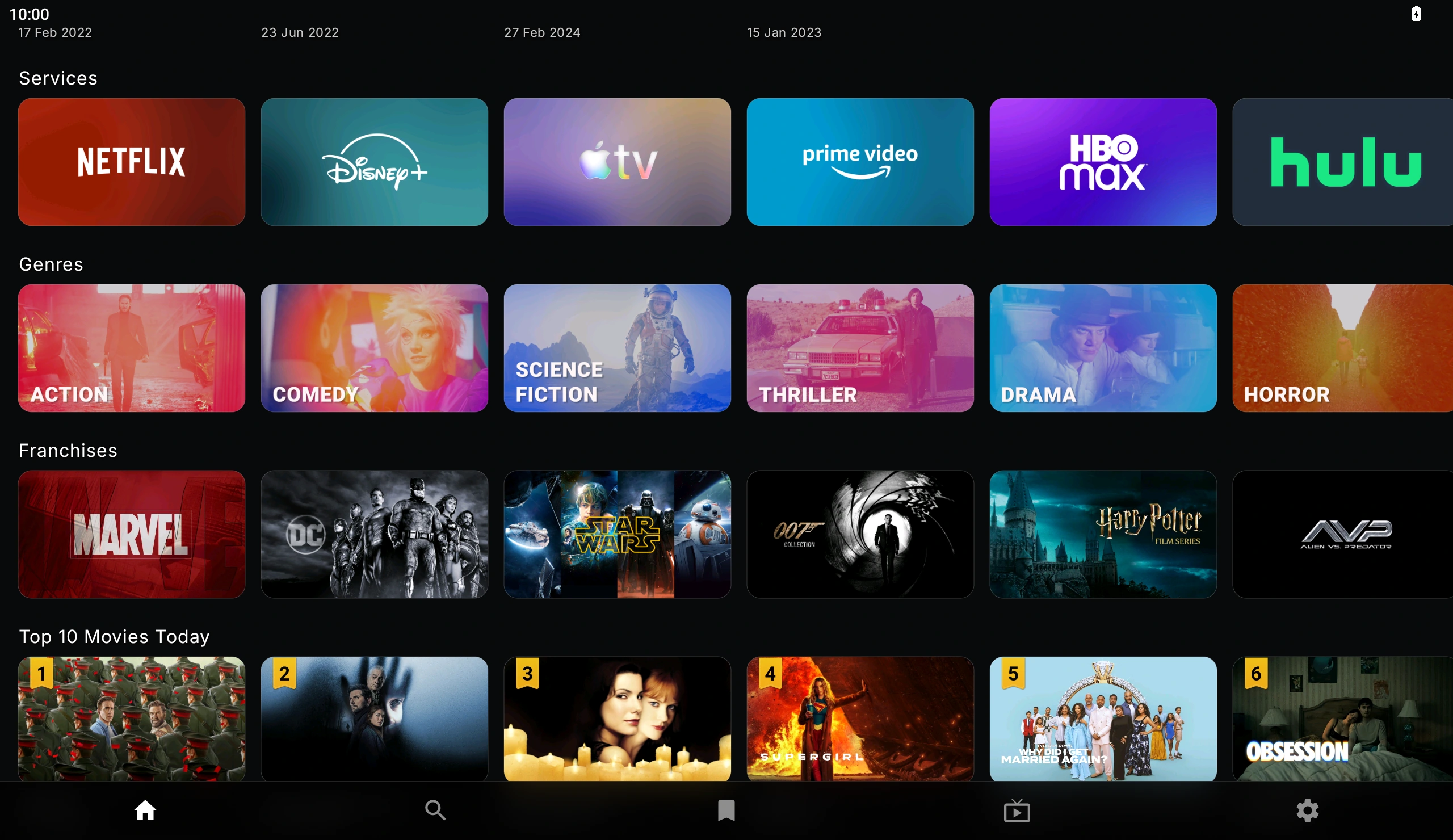
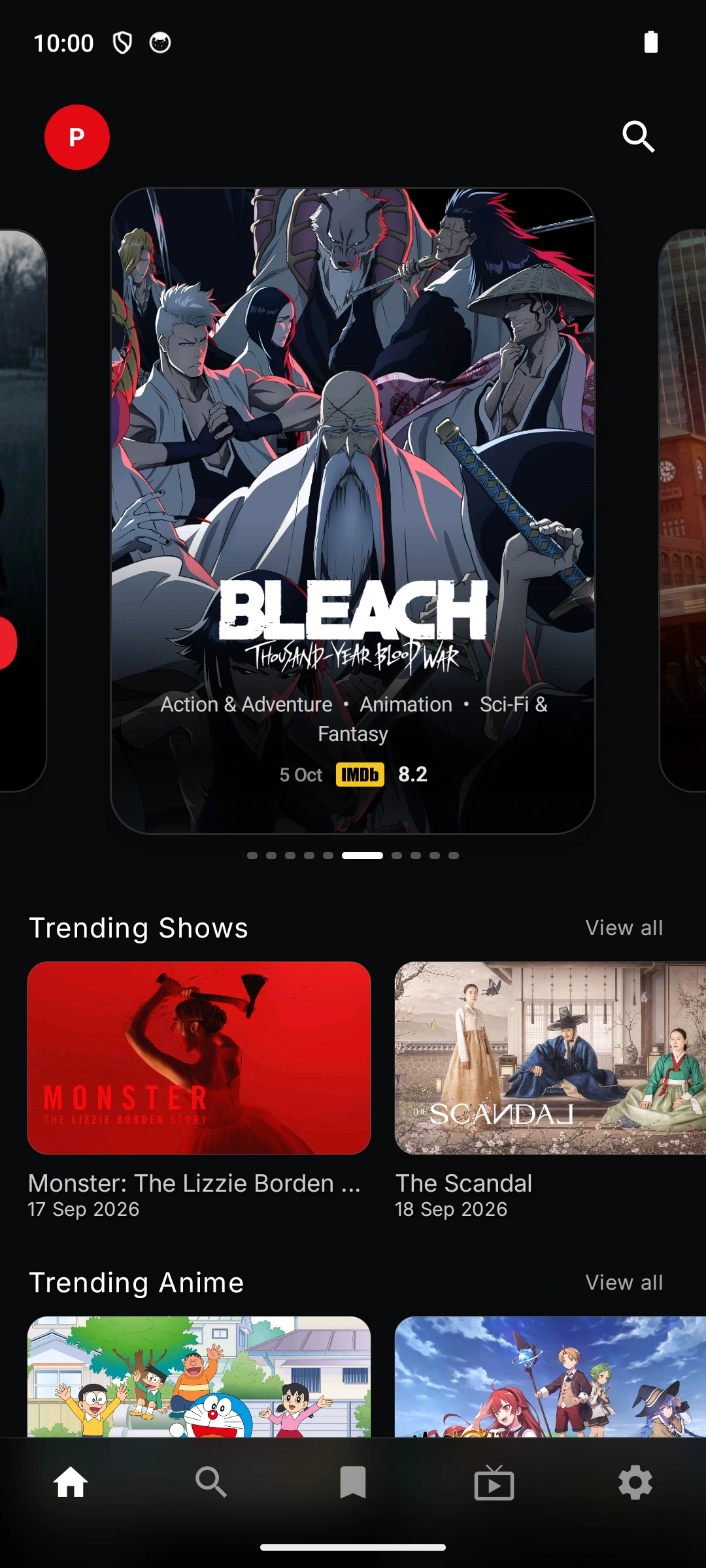
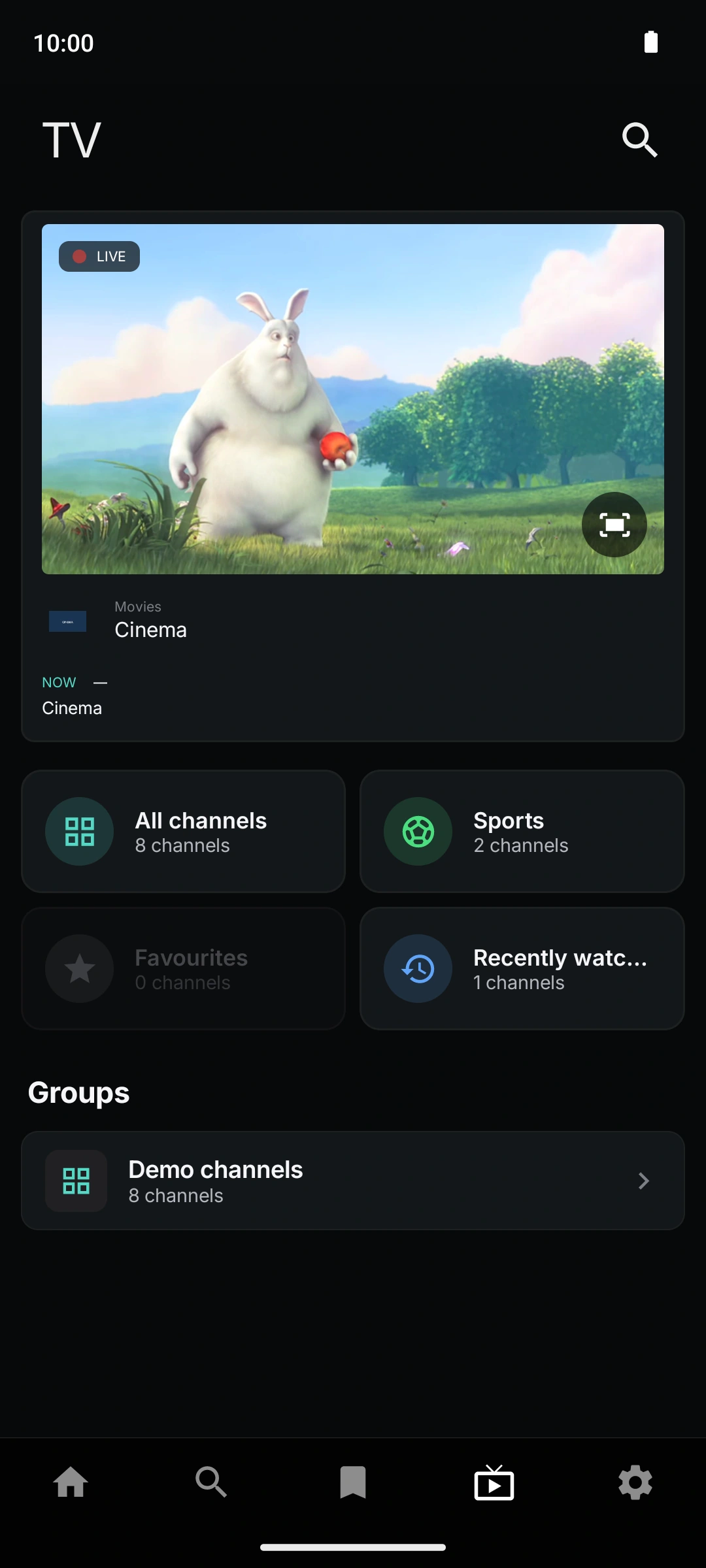
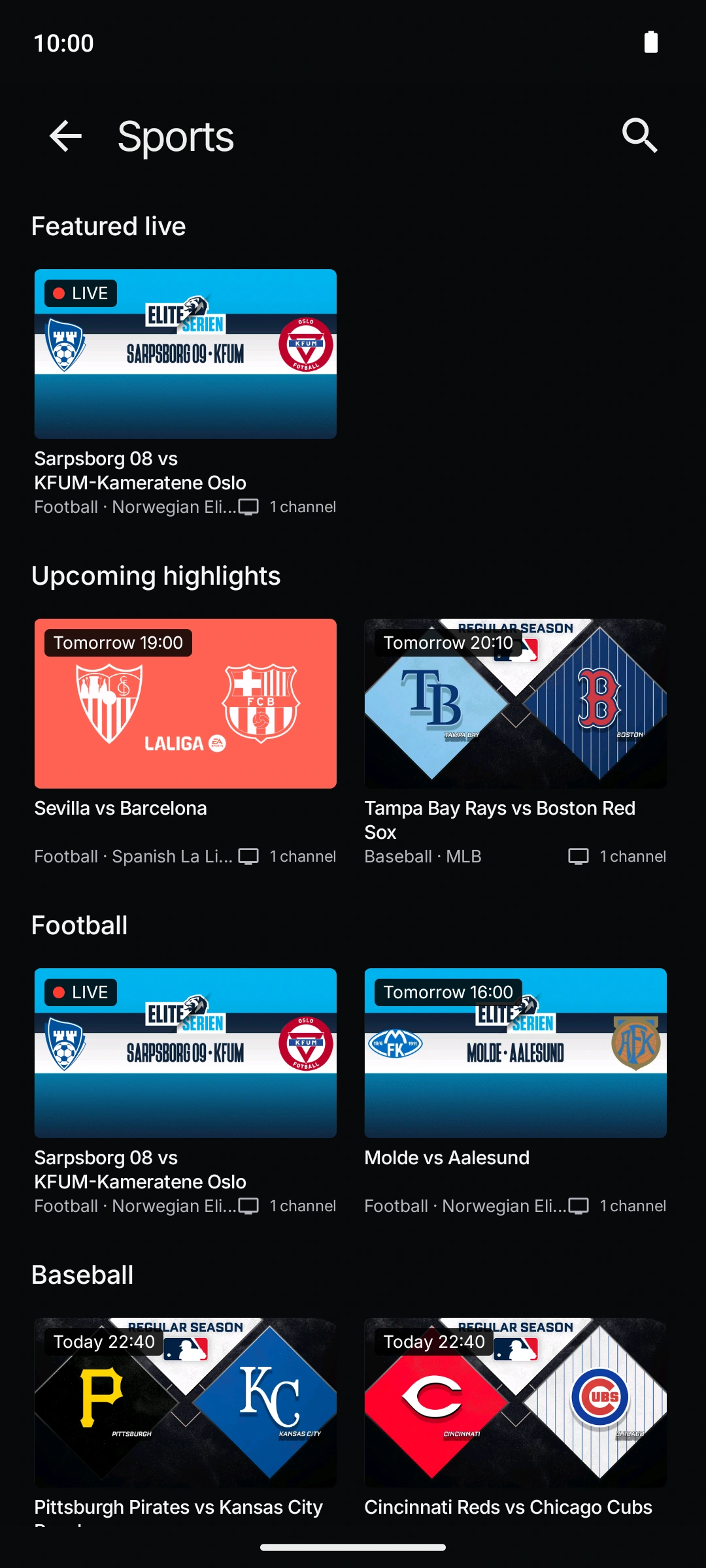
Phone and tablet images use demo libraries and channels.
03 / MAKE YOURSELF AT HOME
Ready for a
better media home?
Get ARVIO for your TV, phone or tablet.
Connect your sources. Make it yours.
THE ARVIO COMMUNITY
Your setup.
Our community.
Make more of ARVIO with people who use it every day. Join our Discord for help, release news and a place to share your ideas.
Join the Discord communityFree to join. Everyone welcome.
Find your people
Talk setups, swap tips and get help from the community.
Stay in the loop
Follow releases and discover what is new in ARVIO.
Help shape ARVIO
Share feedback, suggest features and join the conversation.
A FEW GOOD QUESTIONS
Good to know.
Is ARVIO really free?
Yes. The Android and TV app is free and open source. You can also self-host ARVIO Web for free. Premium is the optional hosted web app membership that helps support the project.
Does ARVIO include movies or channels?
No. ARVIO organizes your own media services, libraries, addons and live TV sources. Bring the accounts and content you are authorized to use.
Can I use it on iPhone or iPad?
Use ARVIO Web in your browser. You can self-host it or choose Premium for hosting handled by ARVIO. Playback depends on your browser and connected source.
How can I support ARVIO?
Support development with a monthly coffee on Ko-fi, contribute on GitHub, or join the Discord community.
Explore all 32 screenshots TV · Mobile · Tablet · Web
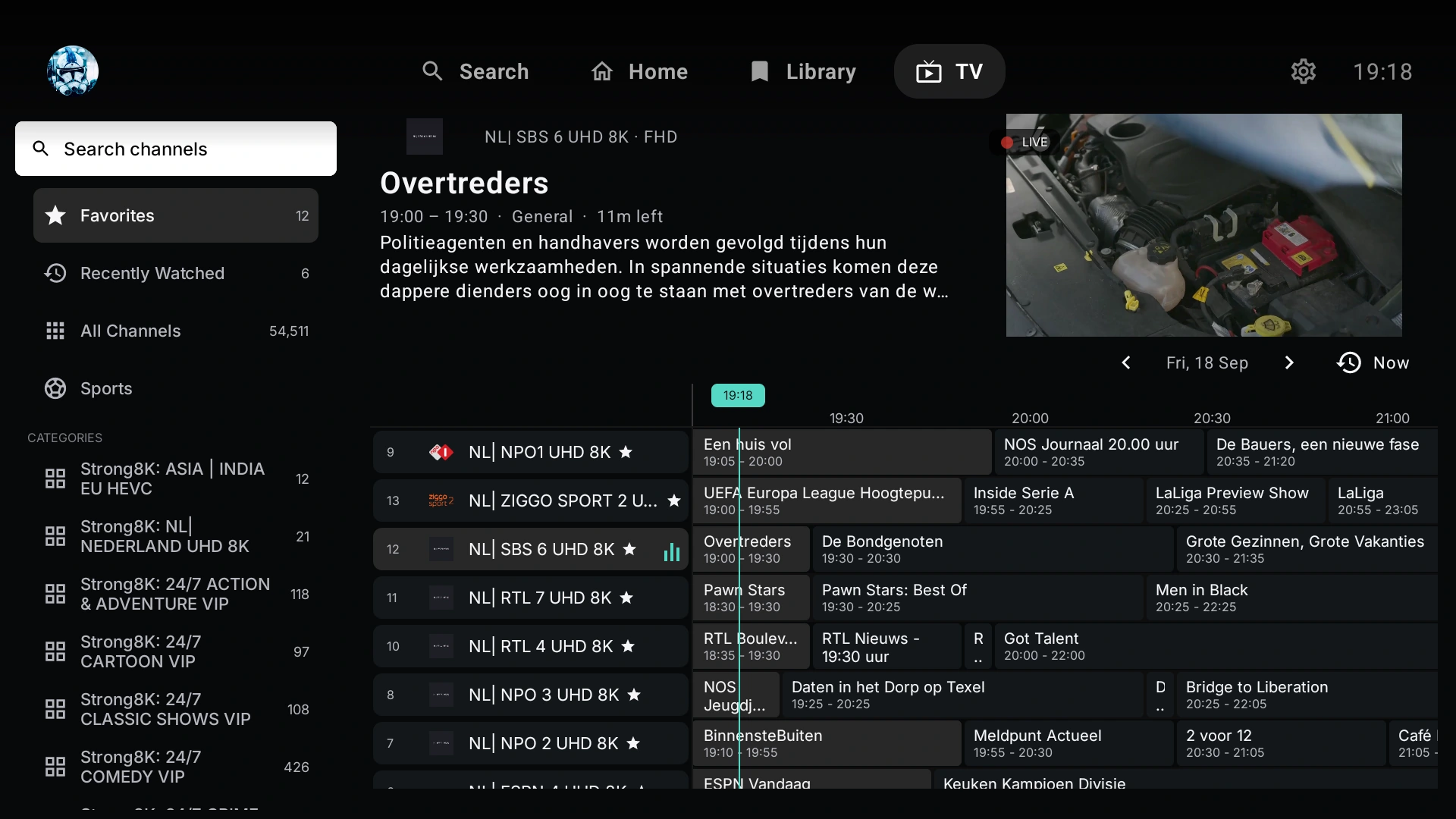
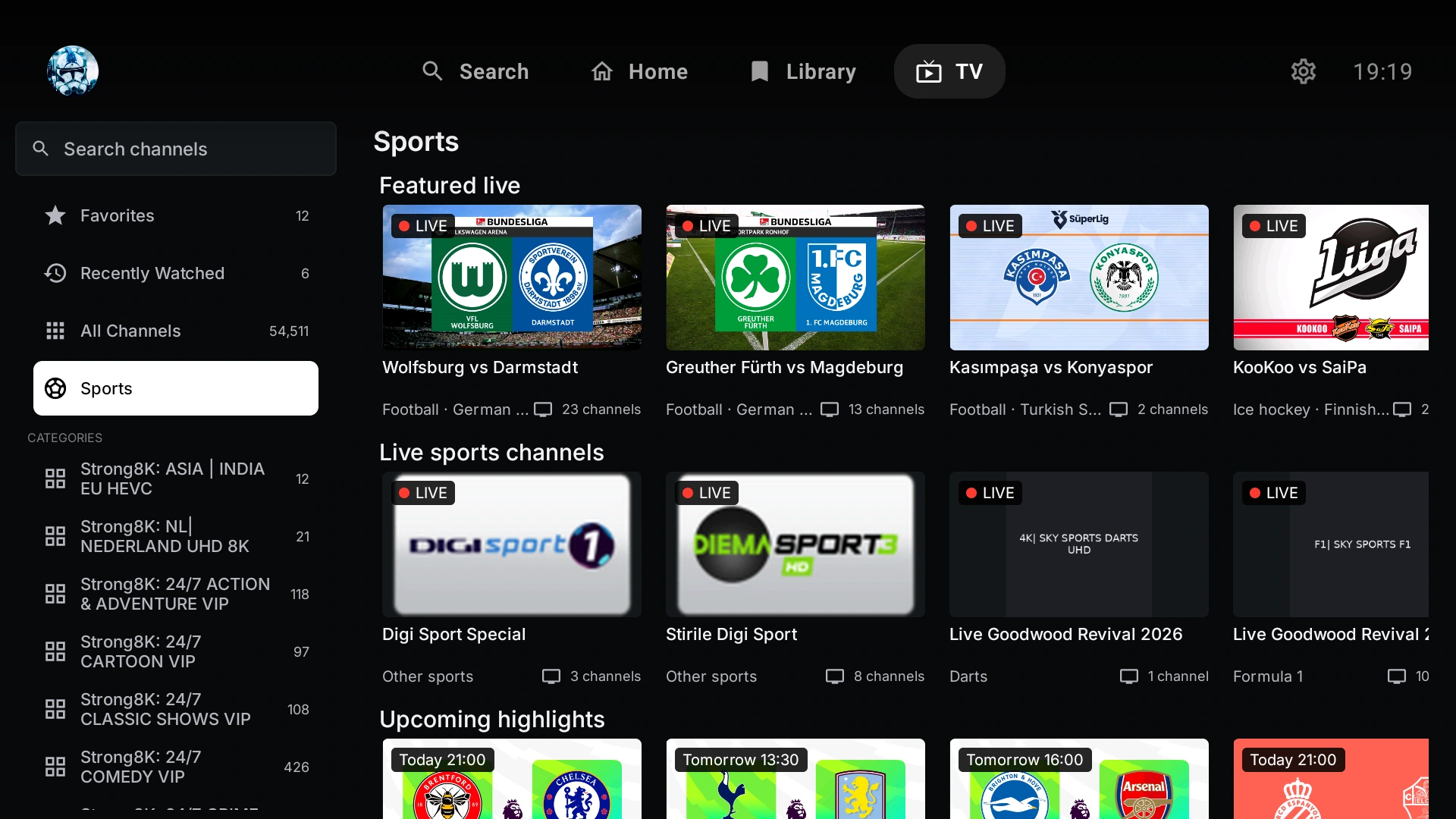
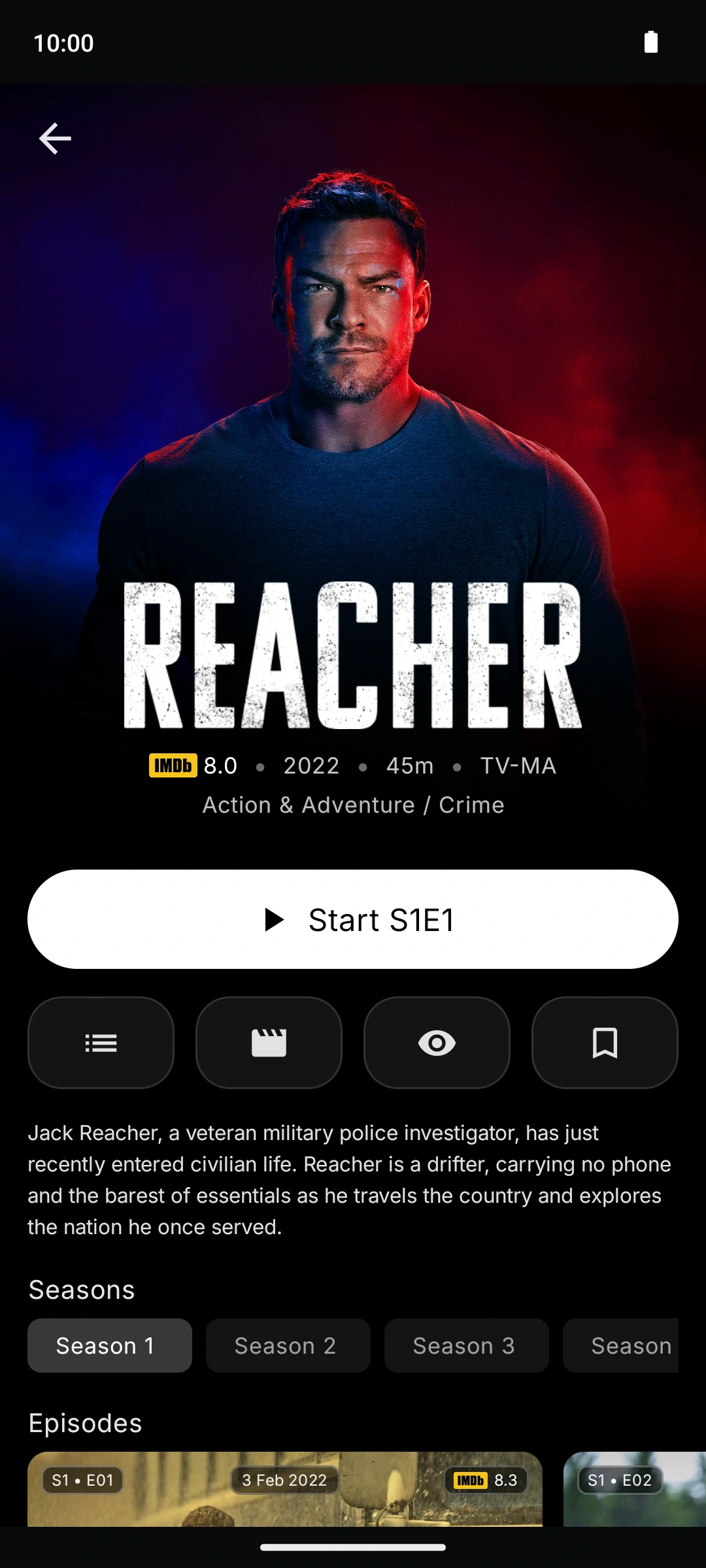
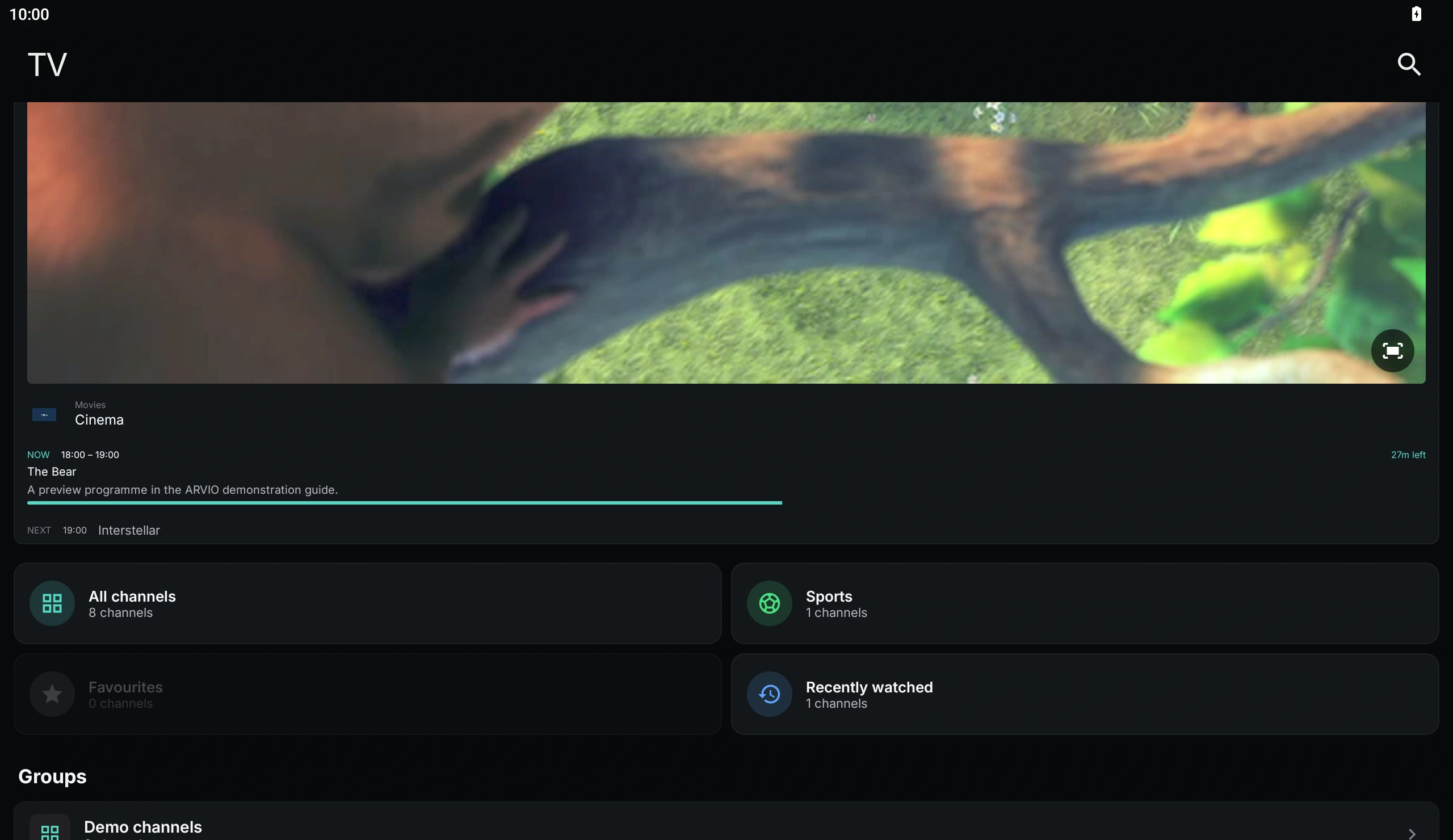
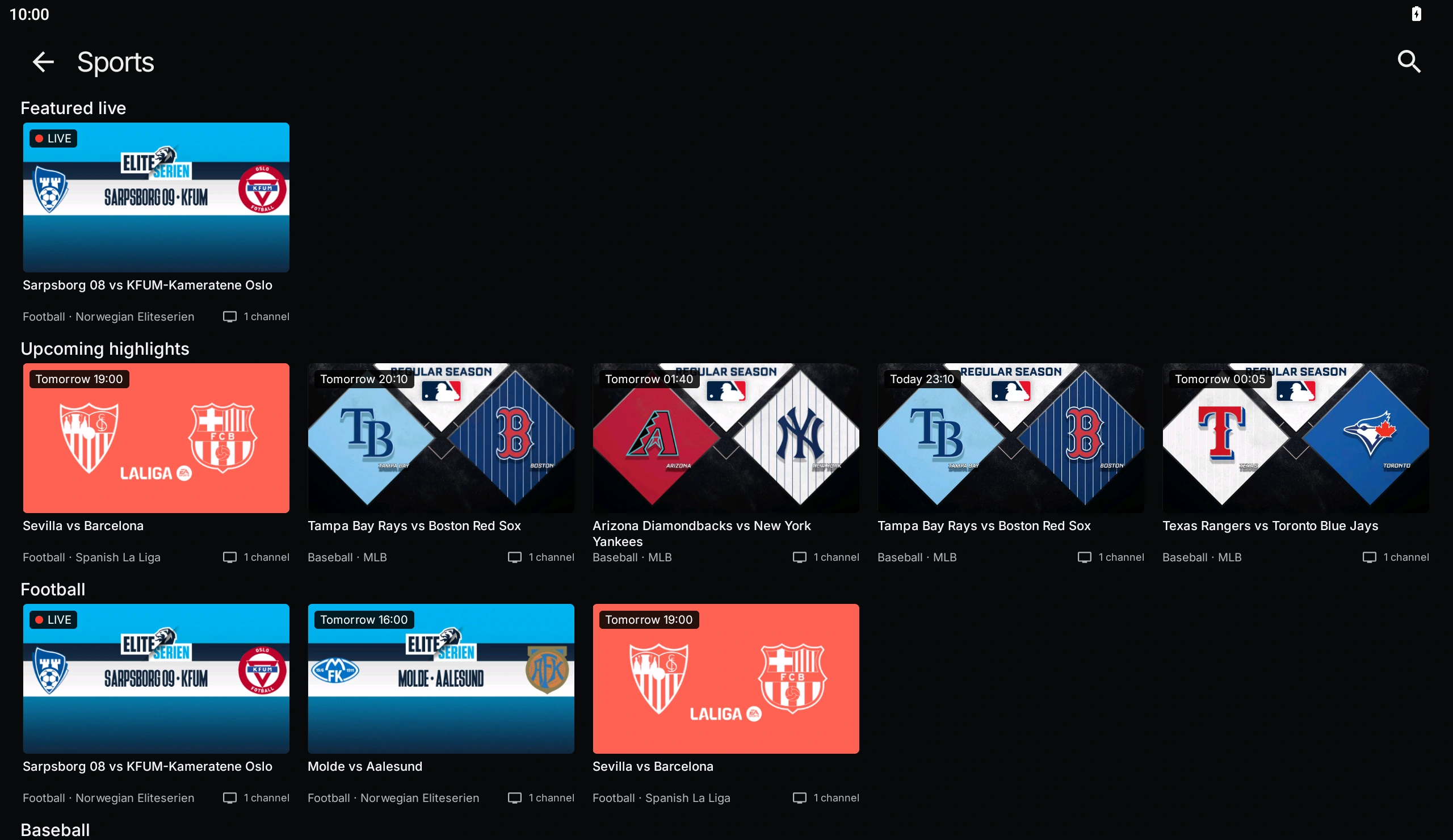
Explore the actual app on TV, mobile, tablet and the web. Open a screenshot to see it in full.
TV6
Mobile6
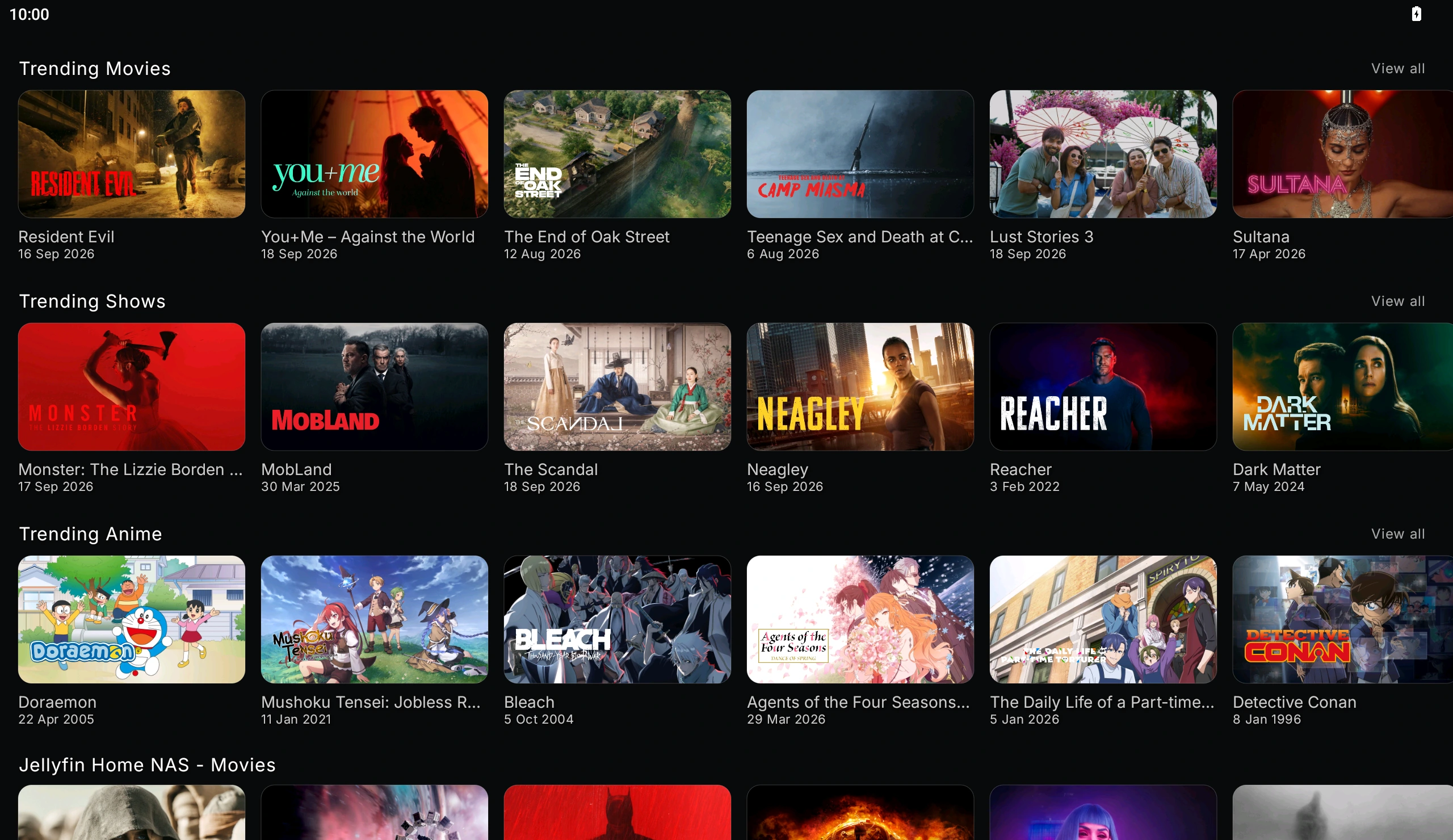
Demo setup · Phone and tablet use demonstration libraries and channels; content and subscriptions are not included.
Tablet7
Demo setup · Phone and tablet use demonstration libraries and channels; content and subscriptions are not included.
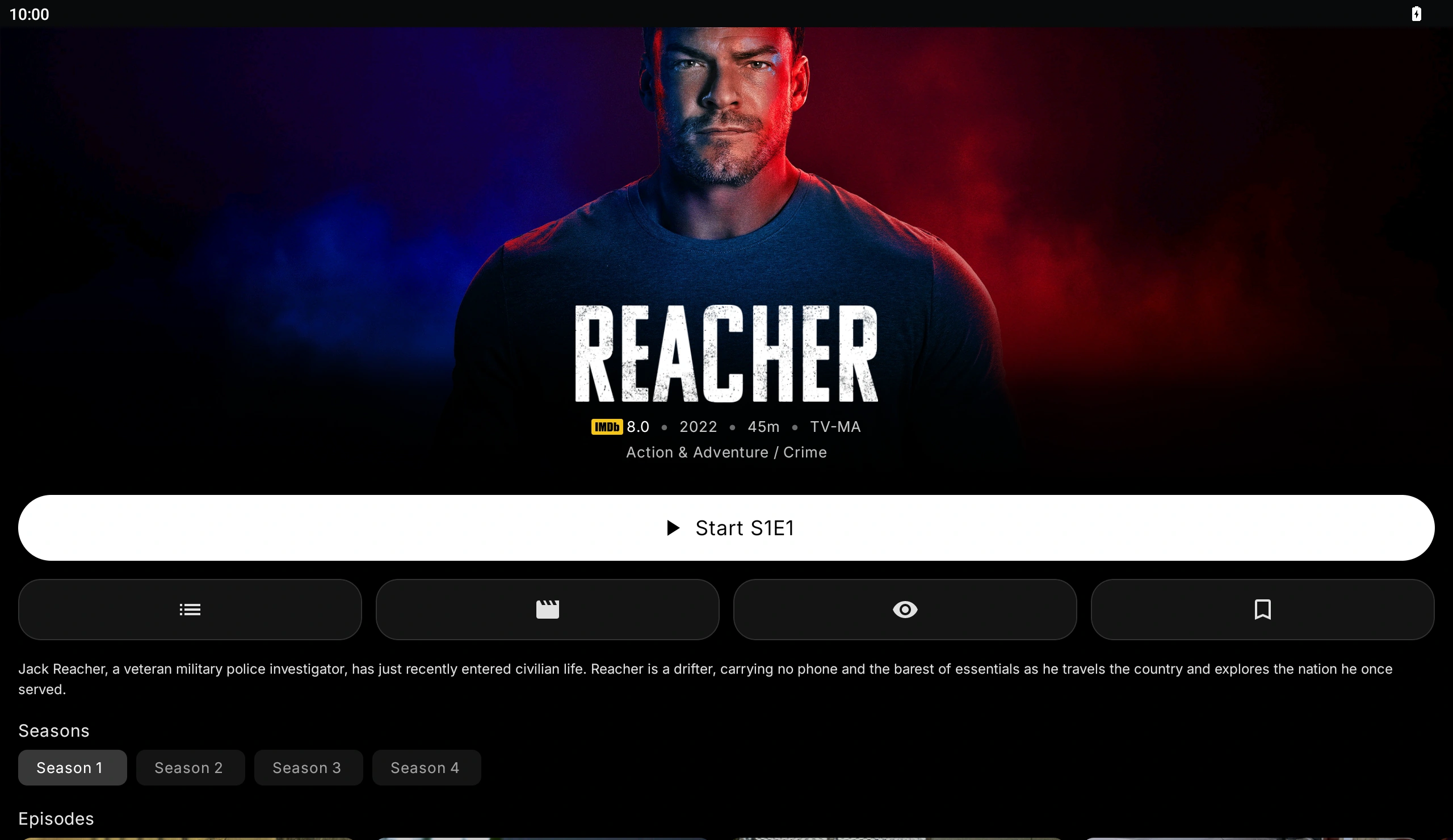
Web13
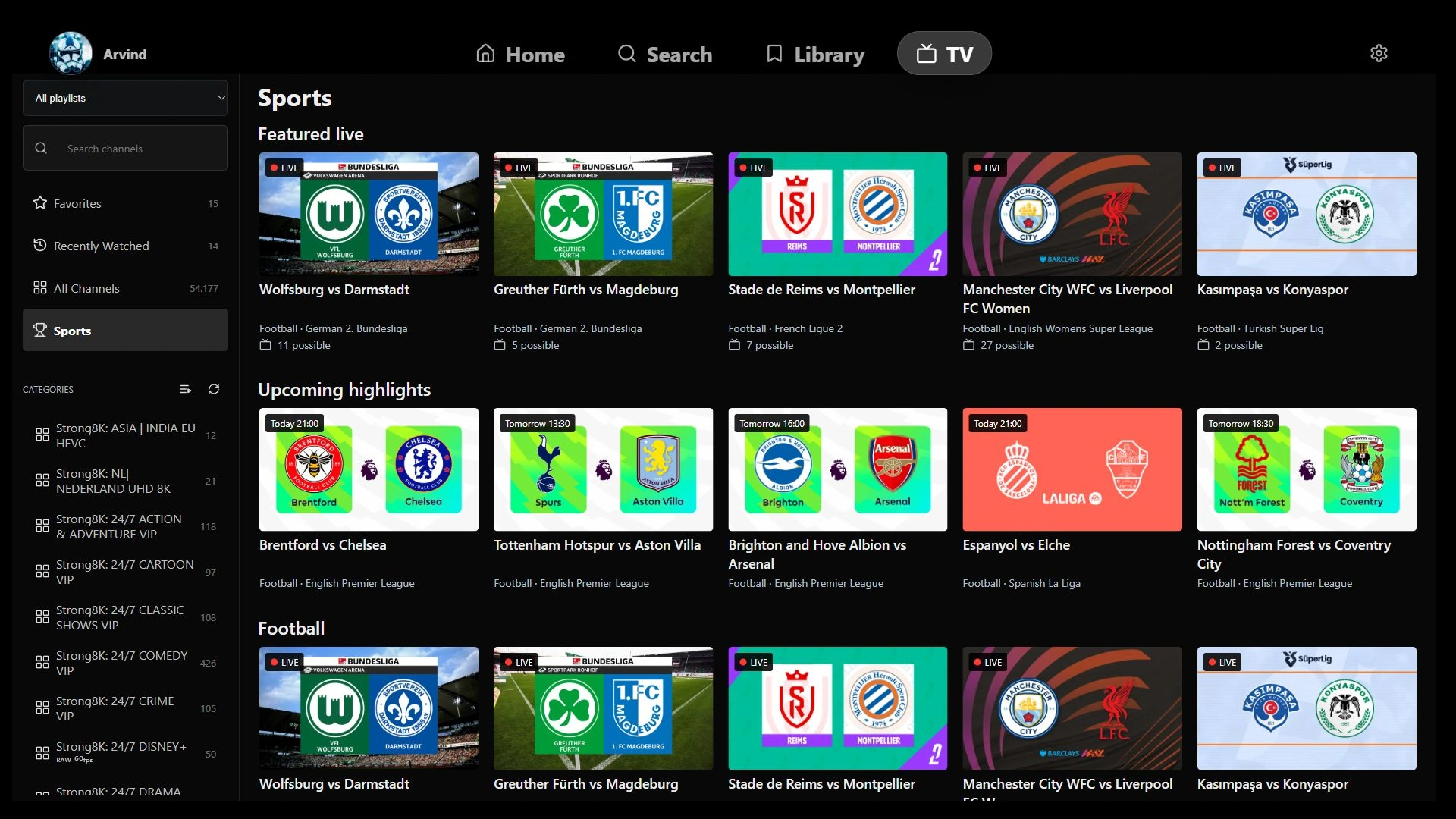
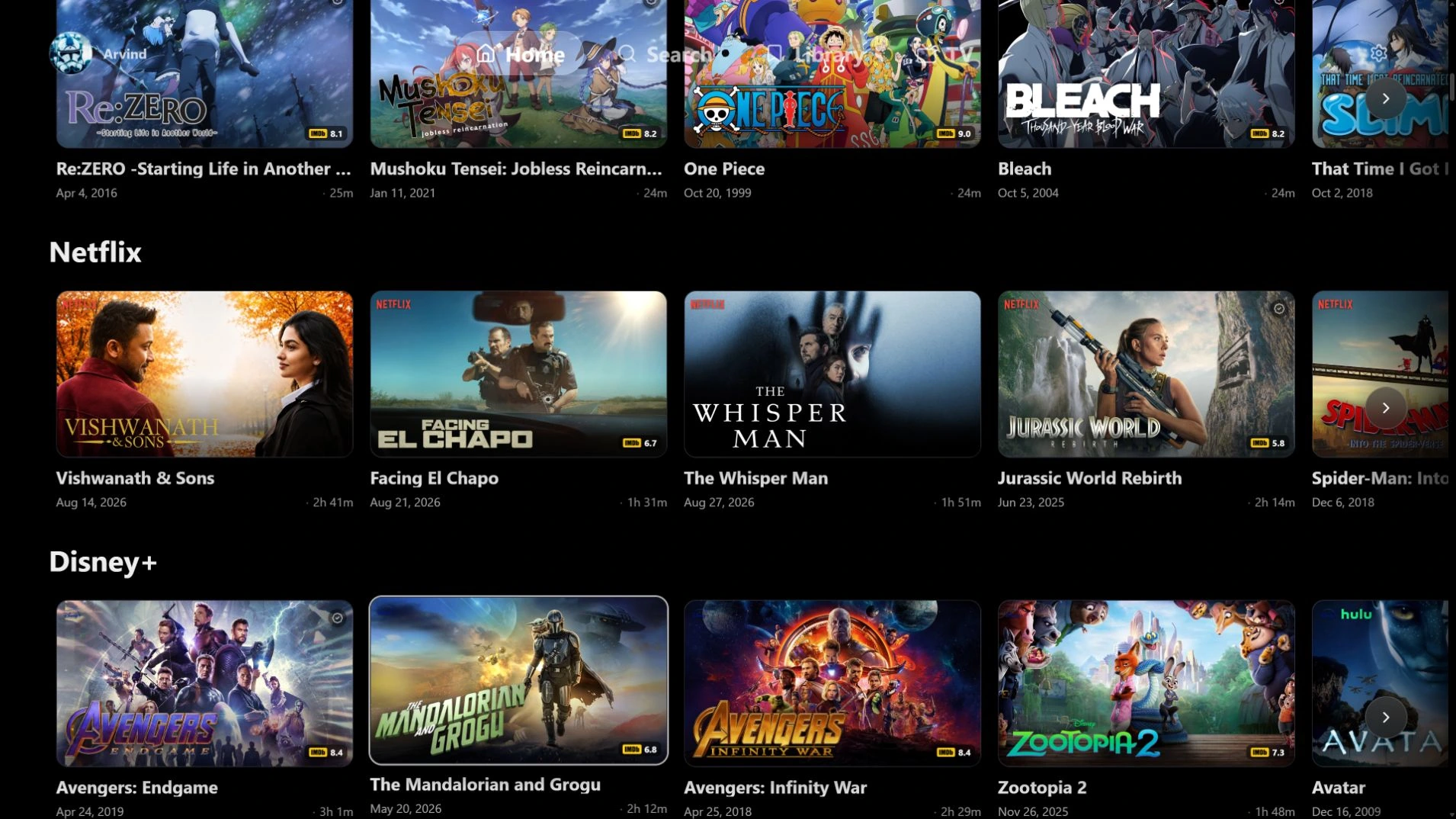
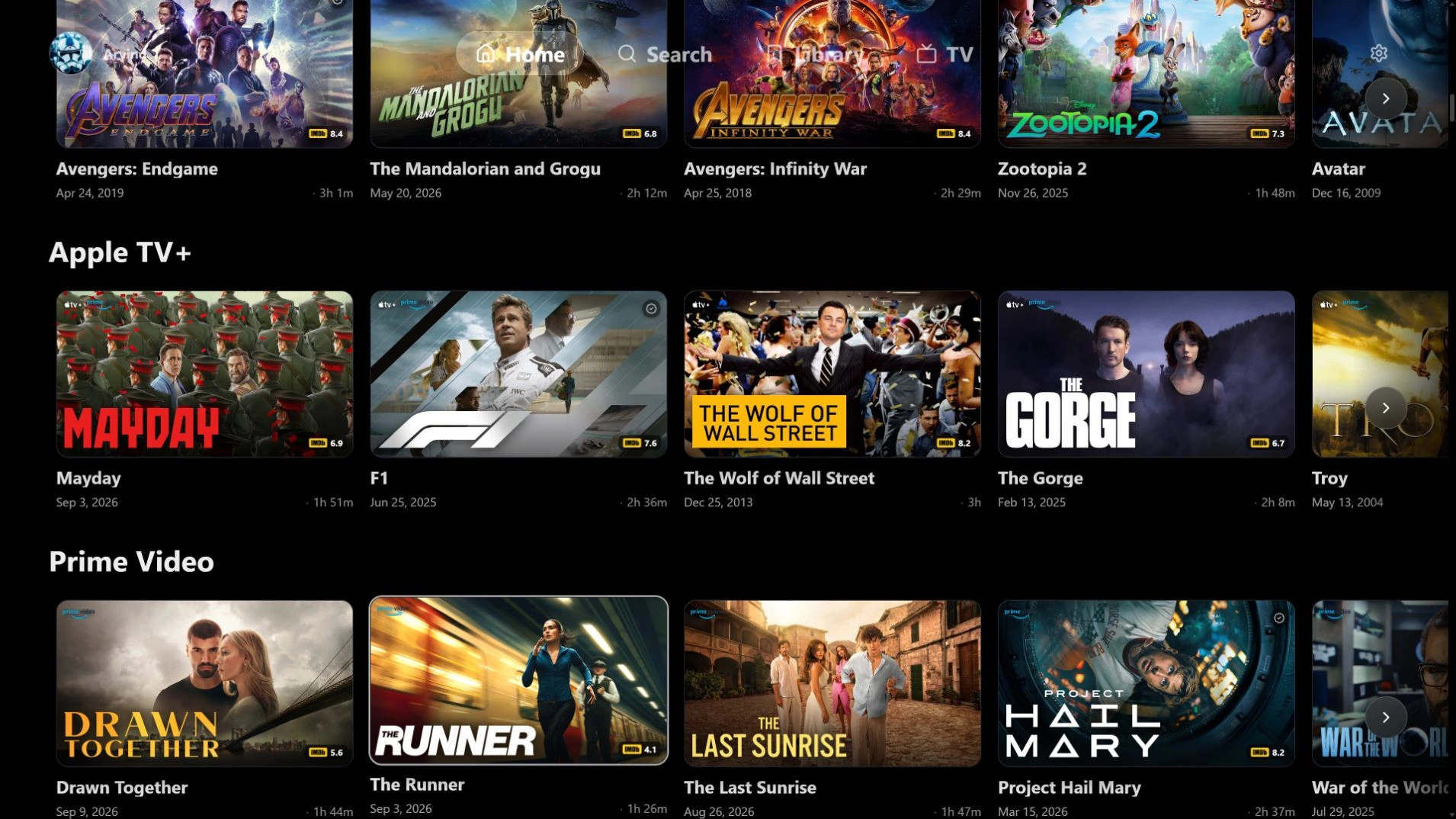
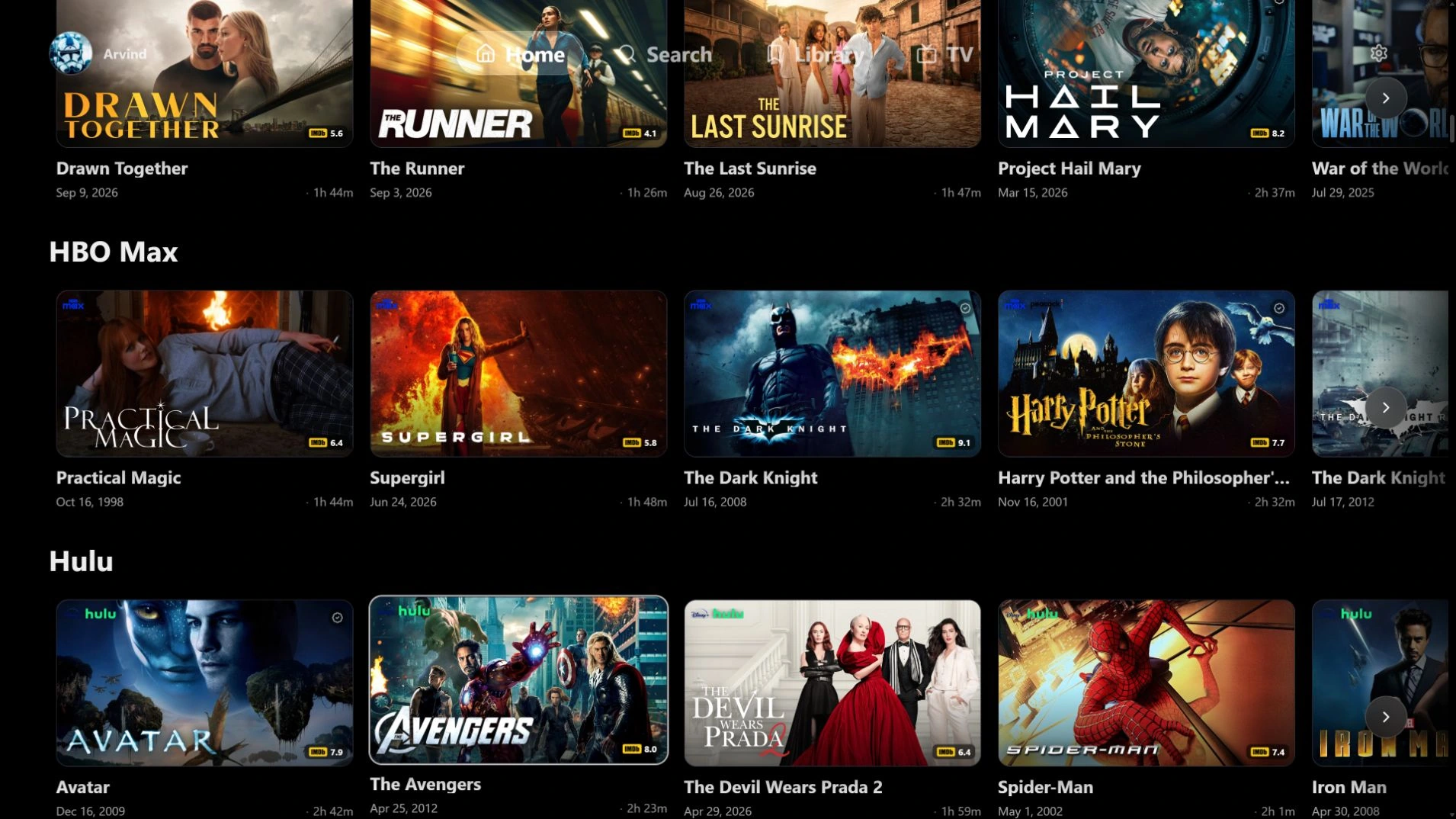
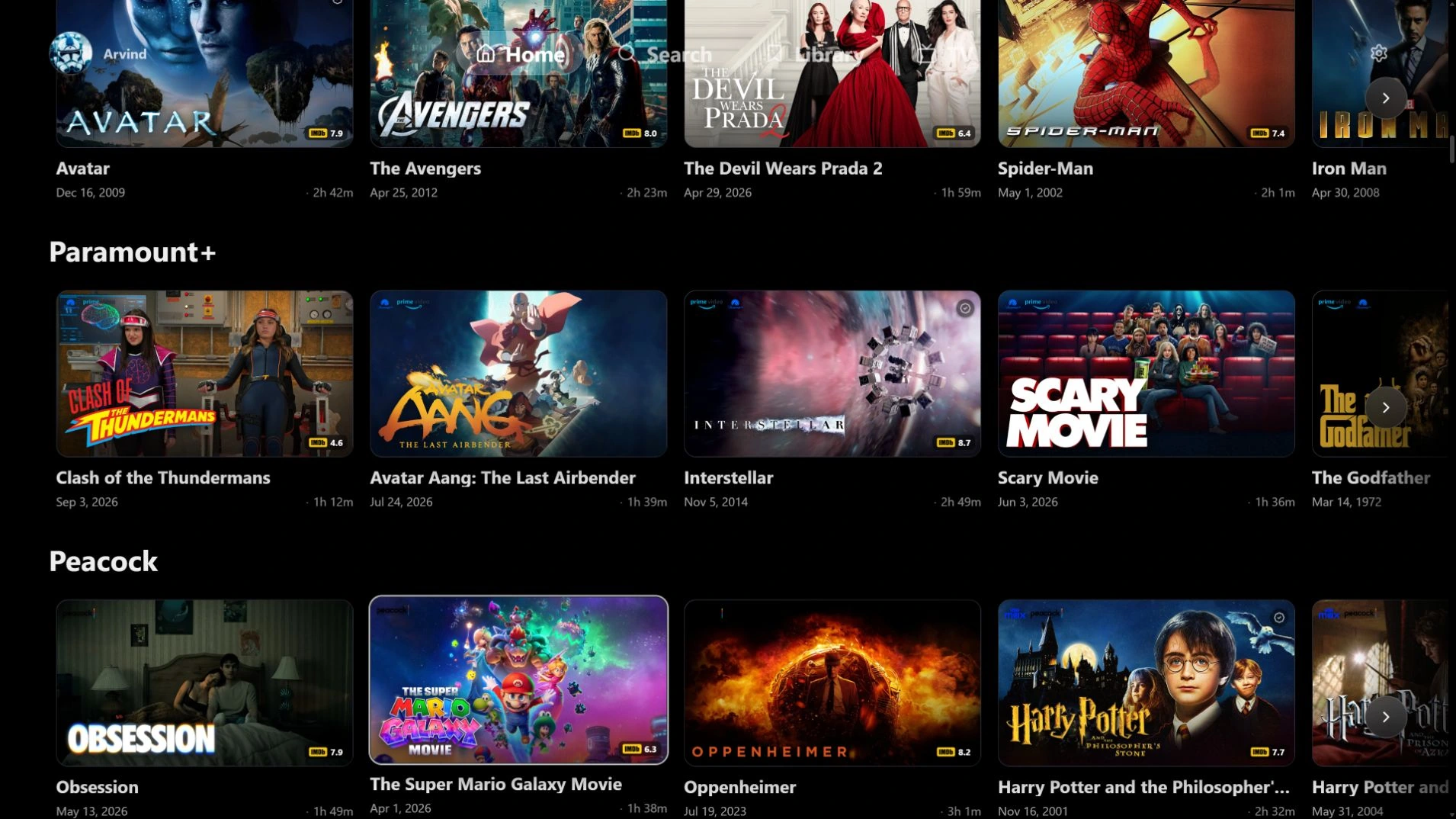
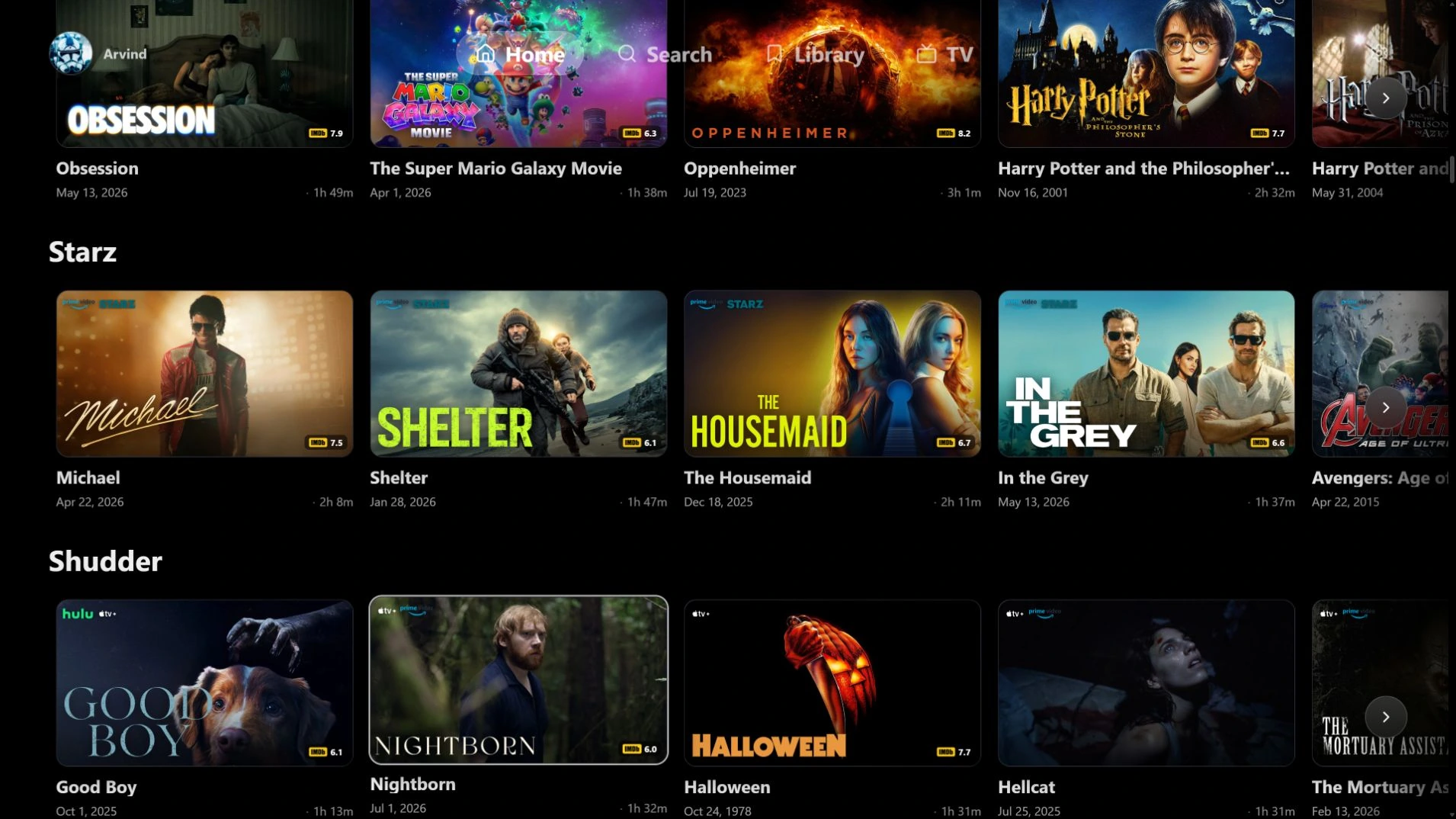
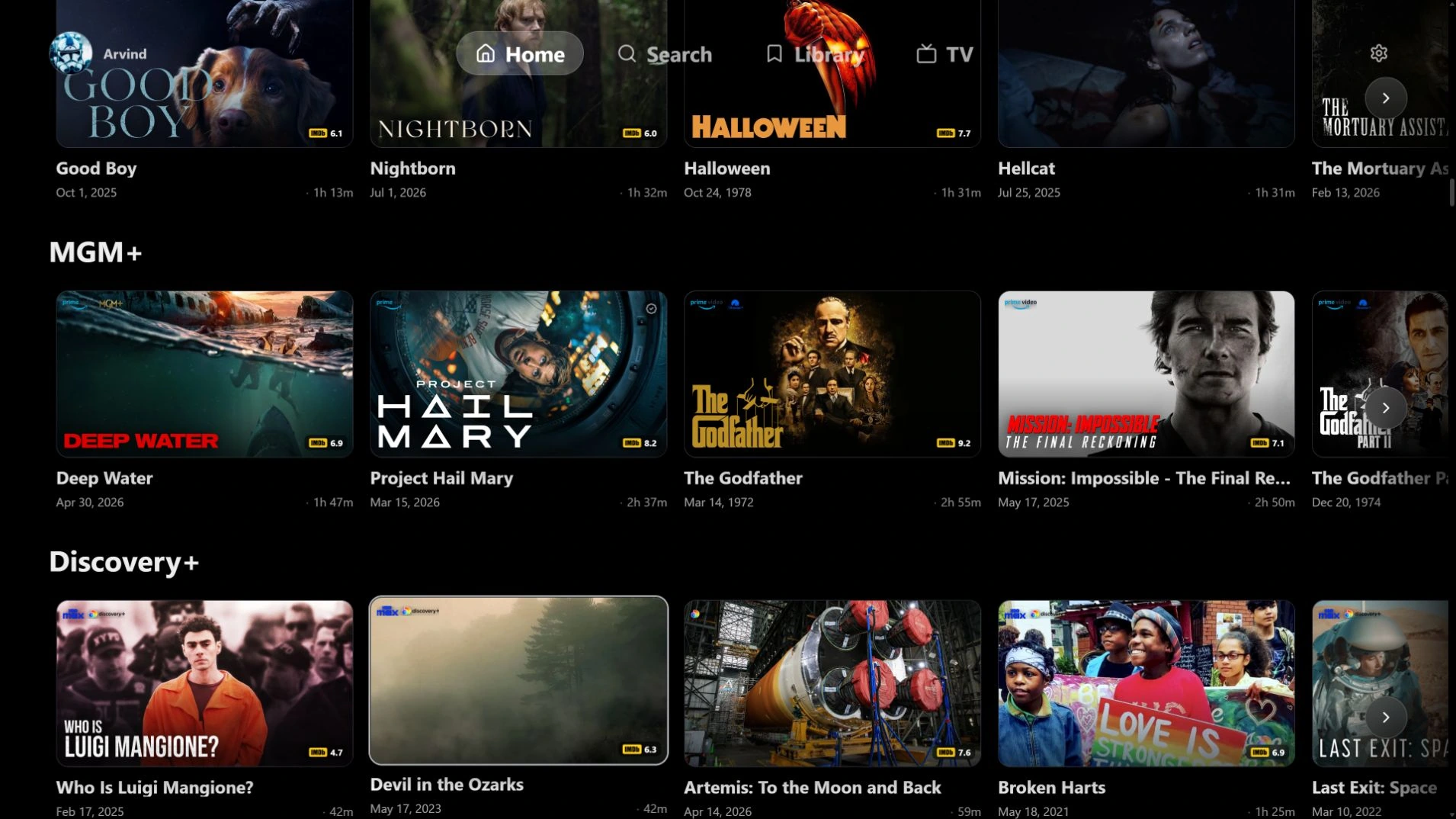
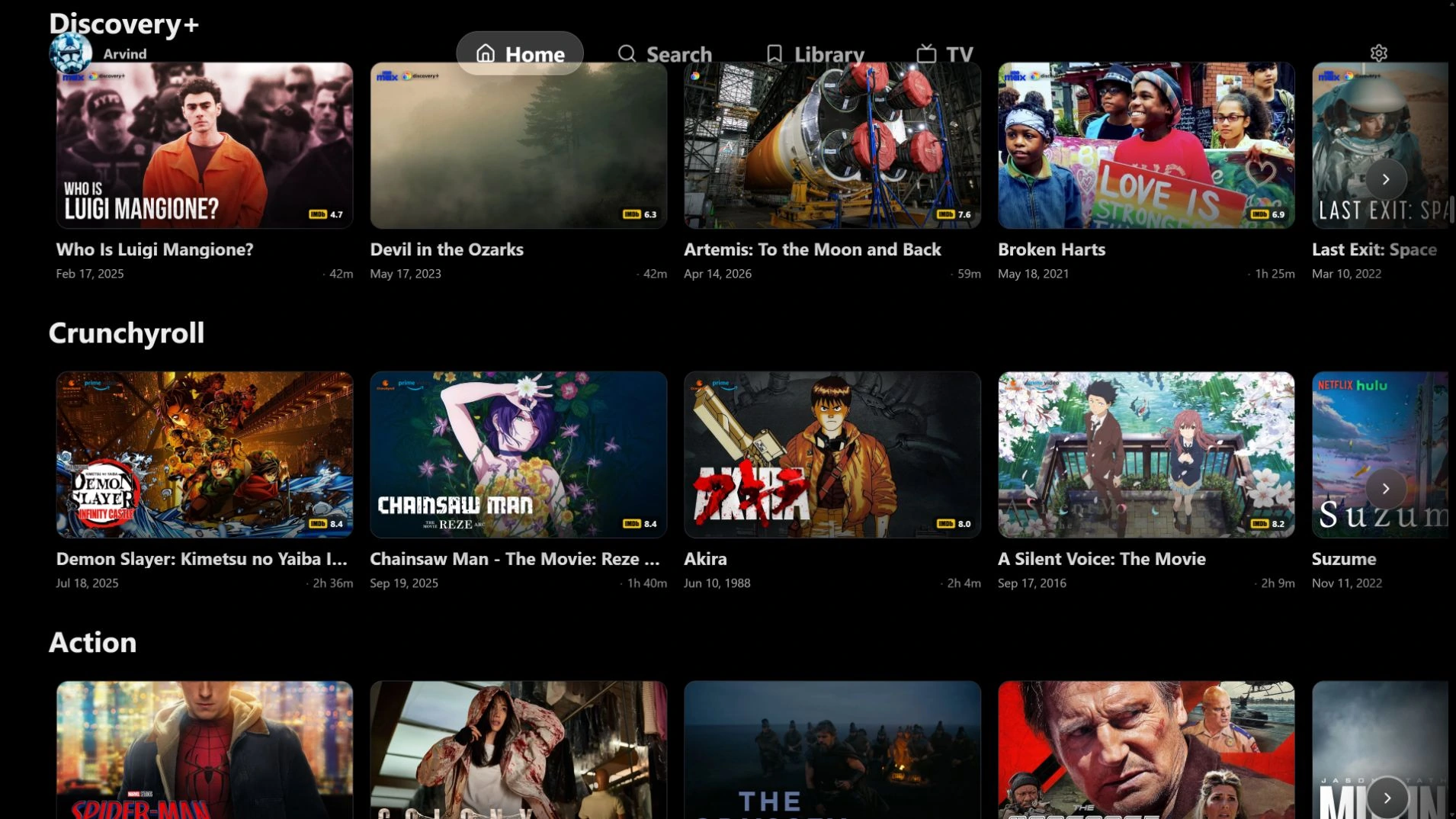
Screenshots show connected sources and example setups. ARVIO includes no media or subscriptions.