ARVIO is the player
The free Android app provides the TV interface and playback controls. Install it on Android TV or Google TV from an official download. For Fire TV, first check the Fire OS compatibility guide.
Android TV · Google TV · Your sources
ARVIO can play compatible debrid and Usenet sources returned by a configured addon. Use its TV interface to browse titles, compare source details and select a playable result. You bring the addon, provider account and permission to access the media.
Updated 5 October 2026 · By the ARVIO project
The free Android app provides the TV interface and playback controls. Install it on Android TV or Google TV from an official download. For Fire TV, first check the Fire OS compatibility guide.
A compatible addon connects the title you select to source results. Some addons only supply catalogs or subtitles. A catalog of posters alone does not provide playable video.
Configure the required account with the addon separately. Debrid and Usenet are different services; the relevant integration must return a source that resolves to accessible HTTP or HTTPS media.
The TV, audio setup and connection still determine which files play well. A 4K badge is source metadata, not a guarantee that every TV can decode its video or audio.
This is an addon-based playback setup, not a native debrid cloud manager or an NZB downloader. No debrid or Usenet subscription is bundled with ARVIO.
Use an addon from a service you trust and are authorized to use. Complete its own configuration, including the provider account if required, then copy the configured manifest URL. It often ends in /manifest.json. Keep URLs containing account tokens private.
Open Settings → Addons → Add Addon, paste the configured URL and review the addon before installing it. If another configuration is already installed, choose Replace installed or Keep both deliberately.
An addon marked Setup required needs configuration before it can supply results. If using the phone QR flow, tap Install in ARVIO on the phone after configuring, then Refresh Addons on the TV. Cross-device restoration requires a valid ARVIO Cloud session with the same account and intended profile. Without cloud sync, paste the configured manifest directly on the TV.
Open a title supplied by your setup and inspect its sources. Select a result your provider makes available and your device can play. Test one working configuration before adding more. See the full addon guide for catalog, stream and subtitle differences.
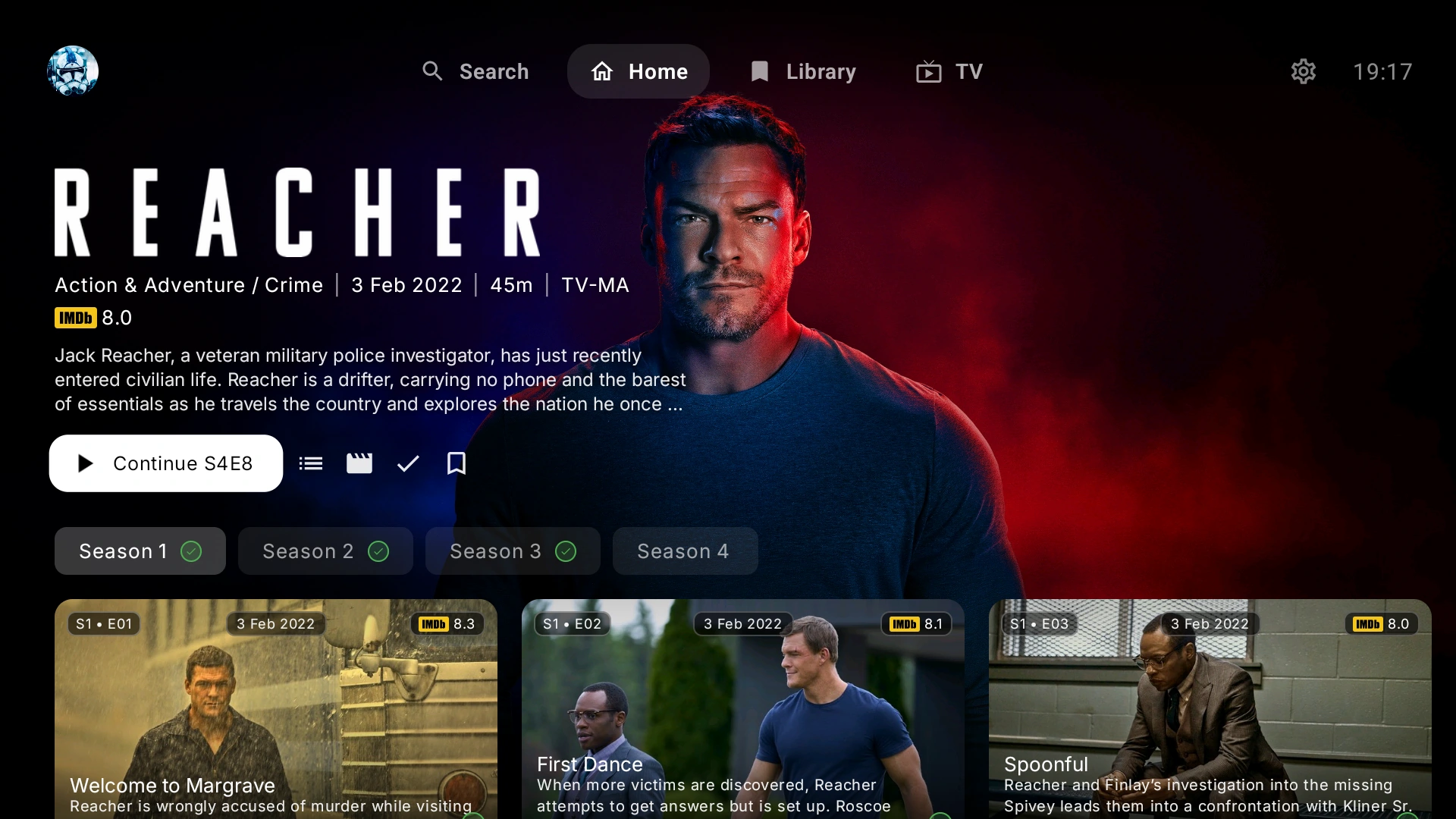
When supplied by the addon, ARVIO can display quality, file size, filename, language and addon or provider attribution. These details help distinguish multiple results for the same title. Missing metadata does not establish that a source is broken, and a provider label alone does not confirm that your account can access it.
Choose a source suited to your connection and hardware. If one version fails, try a different compatible result from your authorized provider. For captions and language preferences, see subtitles on Android TV.
| What you see | What to check |
|---|---|
| Posters, but no sources | Confirm that at least one enabled addon supplies streams, not just catalogs. Check its configuration, provider availability and whether it offers that title. |
| Setup required | Complete the addon's configuration and install the resulting manifest. Simply refreshing an unconfigured URL does not add your provider credentials. |
| Old configuration on the TV | Use the same Cloud account and intended profile for the phone-to-TV flow, then choose Refresh Addons. Alternatively install the updated manifest directly on the TV. |
| A listed result fails | Check the provider account, any reported service error and whether the result resolves to playable media rather than a login page. Request sources again if a link has expired; try another authorized result. |
| Magnet or torrent-only result | ARVIO does not play raw P2P sources. The integration must return a usable HTTP or HTTPS media source. |
| Video or audio is unsupported | Choose a format supported by the device and sound system. Installing an addon does not give a TV new hardware codec support. |
If you need help, share the addon name, device model and error in ARVIO's Discord. Remove account tokens, private manifest URLs and provider credentials from screenshots or logs.
No. The Android app is free, but third-party accounts and any required subscriptions are separate. ARVIO does not supply movies, source indexes, provider credentials or access rights.
No. Direct P2P torrent, magnet and infoHash-only playback is not supported. The addon or service must provide a media source that resolves to an accessible HTTP or HTTPS URL.
No. This setup uses ARVIO as a player for compatible addon-provided sources. It is not a native interface for managing a debrid cloud library, downloading NZB files or browsing a Usenet indexer.
Compatibility depends on the configured addon, its returned URL, the provider account and the media format. A provider name in a source label does not prove compatibility. Test an authorized source on your device before relying on a particular combination.
ARVIO Web can install compatible addon manifests in a supported browser. Browser codecs, network access and provider restrictions differ from Android playback. Managed hosting is optional; self-hosting is also available. A working Android source is not a guarantee of browser playback.
Read the ARVIO Web guide for browser installation and playback limitations.