
Profiles · Sync · Appearance

Profiles, sync and making ARVIO feel like yours.

Give everyone in the house their own space, keep children to age-appropriate titles, sync your setup between TV, phone and browser, and change how ARVIO looks.

Updated 26 November 2026 · By the ARVIO project

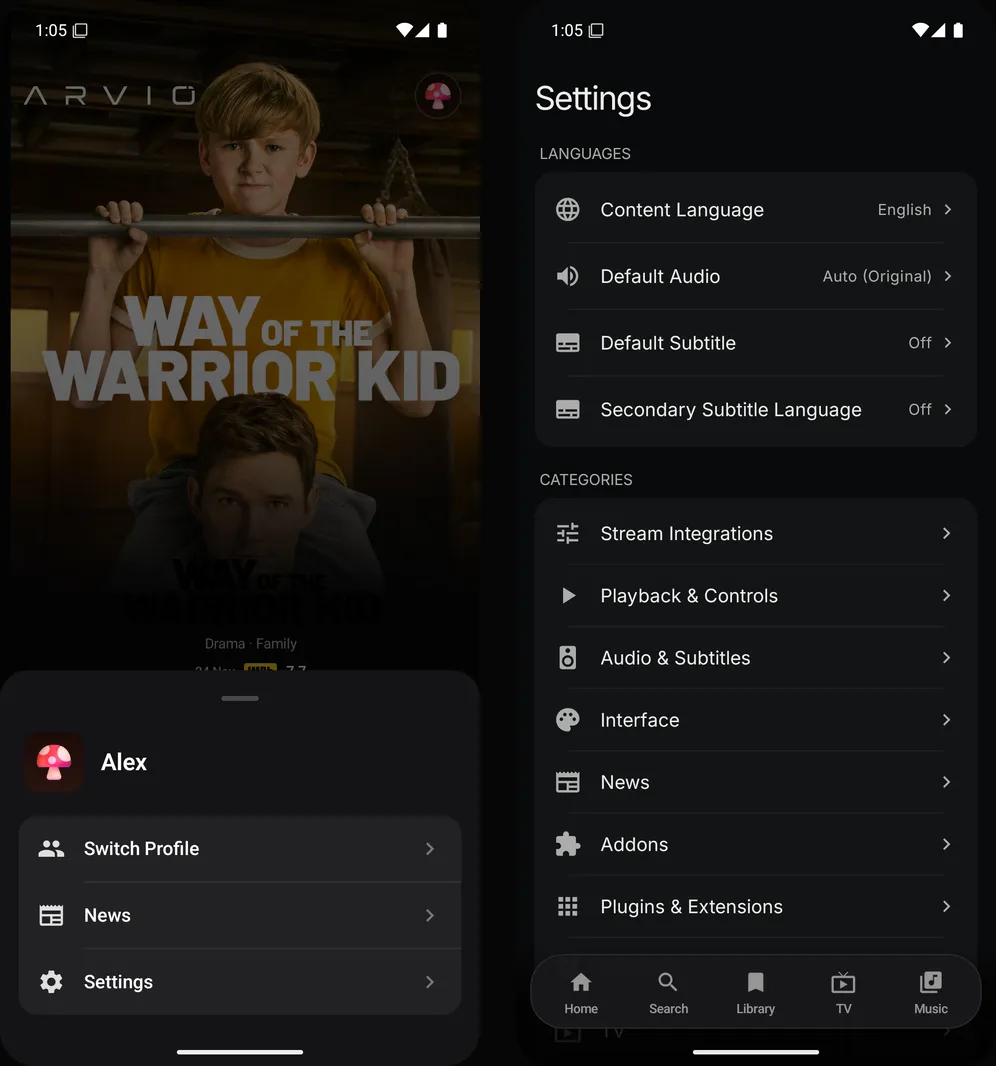
Two phone screens: the profile menu with Switch Profile and Settings, and the Settings page with Interface, Addons and other categories
Tap your profile picture for the profile menu; Interface in Settings holds the appearance options.

Profiles

One profile per person

  1. Create a profile

    On the profile screen choose Add Profile, enter a name and choose an avatar, or Upload Photo on devices with a photo picker. Switch later via your profile picture → Switch Profile.

  2. What is personal

    Each profile has its own watchlist, Continue Watching, watched history, add-ons, catalogs, tracker connections, visible tabs and music library.

  3. Lock a profile

    Under Profile Lock, set a 4 or 5 digit PIN. ARVIO then asks for it before opening that profile.

For children

Kids profiles

  1. Turn on Kids Profile

    Edit a profile and switch Kids Profile on. Choose a maximum age: Up to 7, Up to 10 or Up to 14.

  2. What changes

    Only titles rated for that age appear. Unrated titles, Live TV, Sports, News and Music are hidden. Home gets kid-friendly rows like Movies for Kids and Animated Favorites.

  3. Set a parent PIN

    The parent PIN protects changing or deleting the kids profile. It is not needed to watch.

  4. Approve what you trust

    Some add-on catalogs have no age ratings. You can approve a specific catalog, or a single unrated title in a list, for that kids profile with the parent PIN. Rated titles still follow the age limit.

Sync

ARVIO Cloud: set it up once, use it everywhere

ARVIO Cloud is a free, optional account. It keeps profiles, add-ons, catalogs, live TV settings, music playlists and progress the same on your TV, phone and ARVIO Web.

  1. Sign in

    Open Settings → Accounts → ARVIO Cloud (on a phone: the account section in Settings). On a phone, enter your email and password. On a TV, scan the QR code with your phone to sign in and link the TV, so you do not have to type with the remote.

  2. Use the same account everywhere

    Sign in with the same account on each device and in ARVIO Web. Pick the same profile and your setup appears.

  3. Force a sync if needed

    Changes sync by themselves. If a device seems behind, use Force Sync under the account settings.

What stays on the device

Passwords for your own servers, such as a Navidrome login, stay on the device where you typed them. Your watch history on Trakt or Simkl lives in those services.

Appearance

Accent colour and look

Accent colour

Settings → Interface → Accent Color changes the colour of focus rings, buttons and selected items. Choose from White (default), Red, Orange, Yellow, Green, Blue, Indigo, Violet, Coral, Amber, Teal, Cyan and Pink. The colour applies to the whole device.

OLED black

Turn on OLED Black Background for pure black screens. It looks great on OLED TVs and phones and saves a little battery.

Card layout

Choose landscape or poster cards for your rows under Card Layout.

Language

Set the app language, default audio and subtitle languages under Settings → Language & Audio (on a phone: Languages at the top of Settings). Charts in Music follow the app language.

Your home screen

Home rows and tabs

  1. Show only the tabs you use

    Under Settings → Interface → Navigation you can show or hide Search, Watchlist, TV, News and Music. This is per profile, so one person can have Music and another not.

  2. Order, rename and remove rows

    Settings → Catalogs lists every home row. Move rows up or down, rename them or remove the ones you never look at.

  3. Add your own rows

    Add a Trakt or MDBList list as a row, or build a collection with folders in Collection Studio and import it. Collections and catalogs guide.

Common questions

Profile and sync questions

Do I need an ARVIO Cloud account?

No. ARVIO works fully without one. The account only adds syncing between devices and an easy way to set up a new TV.

Is ARVIO Cloud free?

Yes. The ARVIO Cloud account for syncing is free. Only the hosted ARVIO Web player has an optional paid plan.

What does a kids profile hide?

Titles above the chosen age, titles without an age rating, Live TV, Sports, News and Music. A parent can approve specific unrated catalogs or titles with the parent PIN.

Why did my accent colour change on another profile?

The accent colour is a device setting, so it applies to every profile on that device.

My TV does not show the add-ons I added on my phone. What now?

Check that both devices are signed in to the same ARVIO Cloud account and use the same profile, then use Force Sync or Refresh Addons on the TV.

I forgot my profile PIN. What can I do?

Ask in the ARVIO Discord for help with your device. Do not share your PIN or password there; we will never ask for it.

Still stuck?

Ask in the ARVIO Discord. Mention your device, the ARVIO version (shown under Settings → Accounts) and the exact message you see. Never share passwords, access tokens or private addon or playlist URLs.

Back to all guides · New here? Read how ARVIO works.