New · Android phones and tablets

Music in ARVIO: your own music, nicely organized.

The Music tab plays music from sources you connect: your own Navidrome or other Subsonic server, your Jellyfin music library, or a music add-on. Like films, ARVIO itself does not provide any music.

Available Android phones and tablets Coming ARVIO Web and TV

Updated 26 November 2026 · By the ARVIO project

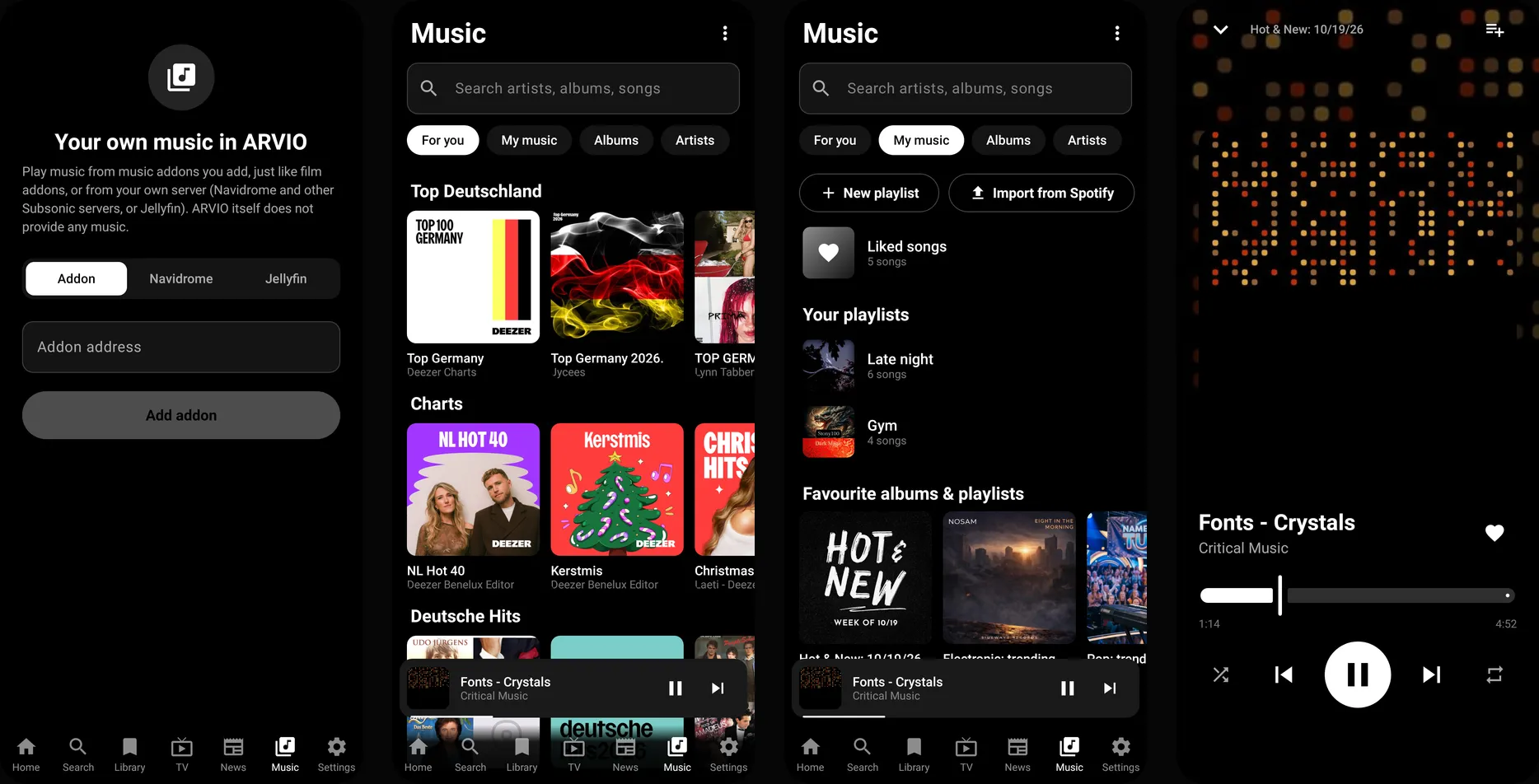
Four ARVIO Music screens on a phone: adding a source, the For you page with charts, My music with playlists and Spotify import, and the full-screen player
Add a source, browse charts, keep your playlists and play. Songs always come from your own sources.

Step 1

Find the Music tab

  1. Update ARVIO

    Music is part of the current Android app. Update from Google Play or install the latest official APK.

  2. Open Music in the bottom bar

    You will find Music next to TV and Settings. Do not see it? Open Settings → Interface → Navigation and switch Show Music on. This is set per profile.

  3. Kids profiles

    Music is hidden on kids profiles, because music catalogs have no age ratings.

Step 2

Add a music source

Tap Add source and pick one of three options. You can add more than one; ARVIO searches all of them.

Navidrome or Subsonic

Free software you run at home on a PC, NAS or Raspberry Pi, pointed at your own music folder. Enter the server address (for example 192.168.1.10:4533), your username and password, then tap Connect. Any OpenSubsonic-compatible server works.

Jellyfin

Already have a Jellyfin server with a music library? Choose Jellyfin, enter its address and your Jellyfin login.

Music add-on

Paste an add-on address ending in /manifest.json and tap Add addon. Want to try it right now? Our reference add-on plays the free catalog that artists upload to Audius themselves: https://resolve.arvio.tv/music/audius/manifest.json

Only add music you are allowed to play.

Your own files, music you bought DRM-free (Bandcamp, Qobuz downloads, CDs you ripped), and catalogs artists publish for free are all fine. Add-ons that scrape streaming services are not, and ARVIO will not recommend them.

Step 3

Browse, search and play

For you

Charts and editorial playlists for your app language, refreshed every day, plus Recently added, Recently played, Most played and Discover from your server. Chart information comes from Deezer; the songs themselves play from your own sources.

Albums and Artists

Your whole library, sorted and with artwork. Open an album and press Play or Shuffle.

Search

Type an artist, album, song or mood like “gym hits”. Songs come first; for playlist-style searches, playlists come first.

The player

Tap the mini player for the full-screen player with seek, shuffle, repeat and Up next. Music keeps playing in the background with controls on your lock screen and in notifications.

Step 4

Keep what you love in My music

  1. Like songs and albums

    Tap the heart in the player, or use the ⋮ menu next to a song. Liked songs and favourite albums appear under My music.

  2. Make playlists

    Tap New playlist, give it a name, and add songs with ⋮ → Add to playlist. Reorder with Move up and Move down; deleting a playlist never deletes the songs.

  3. Same playlists on every device

    With ARVIO Cloud signed in, your music add-ons, liked songs and playlists are saved per profile and follow you. Server logins stay on the device you entered them on.

Coming from Spotify?

Rebuild your Spotify playlists

ARVIO can recreate your Spotify playlists and liked songs from your own music sources. Spotify itself is not played and you never sign in with Spotify.

  1. Export your library

    Use exportify.app to download a CSV per playlist (including Liked Songs), or request Download your data in your Spotify account privacy settings and use the zip or its YourLibrary.json and playlist files.

  2. Import in ARVIO

    Open Music → My music → Import from Spotify, tap Choose files and select the files. ARVIO looks up each song in your sources.

  3. Check the result

    Songs your sources do not have are left out. Add them to your library later and import again to fill the gaps.

Common questions

Music questions

Does ARVIO include music?

No. ARVIO is a music player. Songs play only from sources you add: your own Navidrome, Subsonic or Jellyfin server, or a music add-on you are allowed to use.

Why can I see a chart song that does not play?

Charts show what is popular, using public chart data. ARVIO then looks for that song in your own sources. If none of them has it, the song cannot play. Add it to your library or a source that has it.

Can ARVIO play Spotify, Apple Music or YouTube Music?

No. Those services only allow playback in their own apps. ARVIO can import your Spotify playlists and liked songs as lists and match them to music in your own sources.

Is Music available on Android TV or ARVIO Web?

Not yet. Music is available in the Android app on phones and tablets. ARVIO Web and TV versions are being worked on.

Why can a profile not see the Music tab?

Music may be switched off for that profile under Settings → Interface → Navigation. Kids profiles never show Music, because music catalogs carry no age ratings.

My server will not connect. What should I check?

Use the address you would open in a browser on the same network, including the port, such as 192.168.1.10:4533. Check the username and password, that the phone is on the same network or the server is reachable from outside, and that the server is running.

Still stuck?

Ask in the ARVIO Discord. Mention your device, the ARVIO version (shown under Settings → Accounts) and the exact message you see. Never share passwords, access tokens or private addon or playlist URLs.

Back to all guides · New here? Read how ARVIO works.